

Instagram API: how to publish posts, reels and carousels in 2026
How the Instagram Graph API publishes: access, tokens, the container and publish calls, media limits, the daily cap Meta’s docs disagree on, and common errors.
11 minute read By SocialHelper team
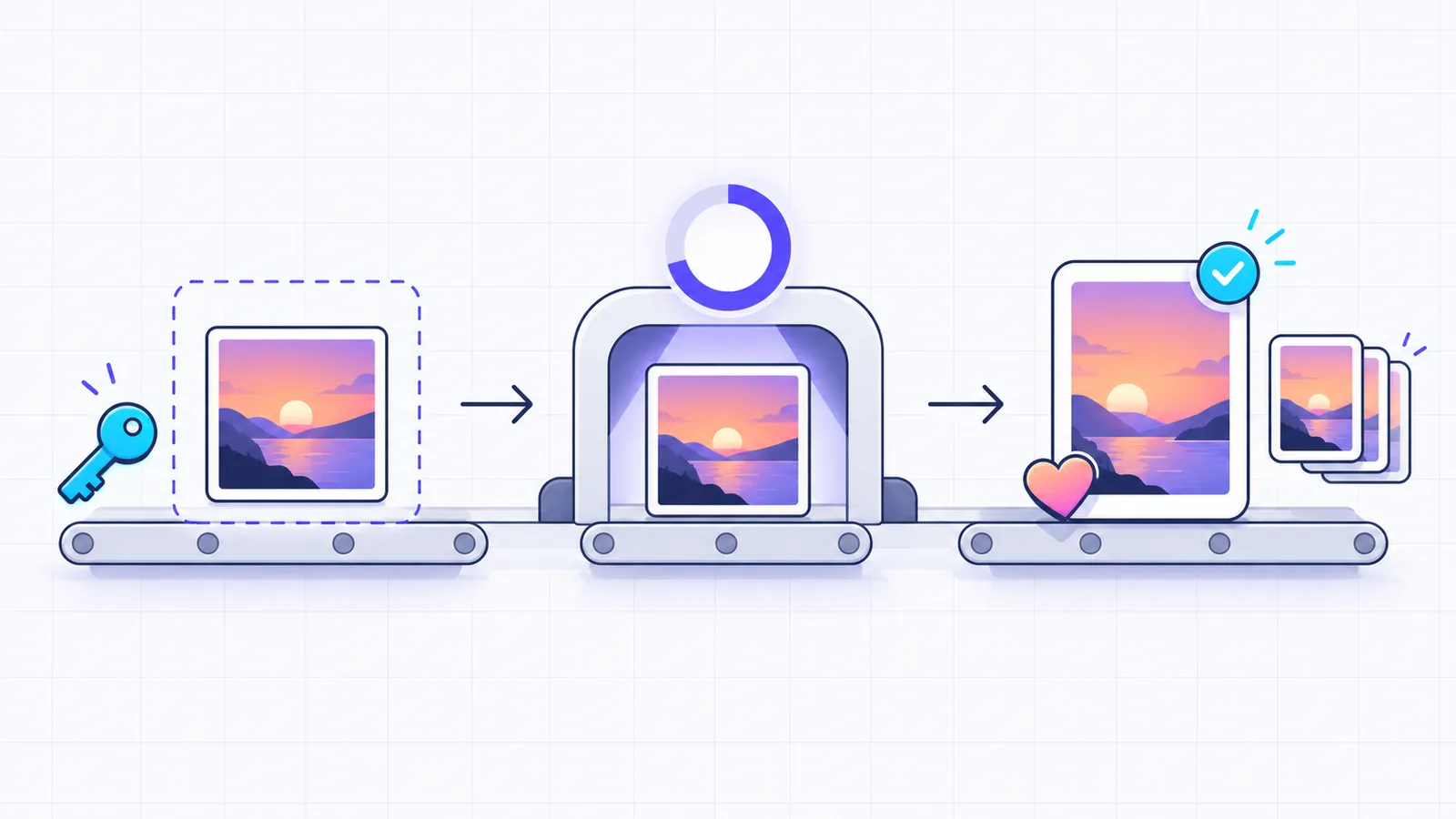
The Instagram API lets an app post to Business and Creator accounts on Instagram, but not to personal ones. Meta calls it the Instagram Platform, and most developers still call it the Instagram Graph API. Publishing takes two calls. First you create a media container from a public image or video URL, then you publish it. Before that you need a Meta app and an access token with the publishing permission. If the app serves accounts you don’t manage, you also need App Review and Business Verification.
This guide covers access, tokens, the calls to publish, Meta’s limits and the errors you’ll meet. The worked example is the set of checks SocialHelper runs before it posts to Instagram.
What the Instagram API is
The Instagram Platform is Meta’s “collection of APIs that allows your app to access data for Instagram professional accounts including both businesses and creators” (Instagram Platform overview). It covers publishing, comments, messages and insights. The old Basic Display API, which read personal accounts, shut down on December 4, 2024. Meta said that afterwards “there will no longer be a set of Instagram APIs for consumer developer apps” (Meta for Developers blog).
There are two ways to set it up, and the choice decides your login, your API host and your permissions.
| Instagram Login | Facebook Login | |
|---|---|---|
| Accounts it serves | Professional accounts with no Facebook Page | Professional accounts linked to a Facebook Page |
| People sign in with | ||
| API host | graph.instagram.com | graph.facebook.com |
| Permissions to publish | instagram_business_basic, instagram_business_content_publish | instagram_basic, instagram_content_publish, pages_read_engagement |
| Extra features | None | Hashtag search, product tagging, partnership ads |
Instagram Login is the simpler route if you only want to publish, and it’s the one SocialHelper uses. An app picks one: it can use Facebook Login or Instagram Login, but not both.
What you need before the first call
- A professional account. Switch the account to Business or Creator in the Instagram app. Personal accounts can’t be published to, and SocialHelper won’t connect one.
- A Meta app of the Business type. Create it in the Meta App Dashboard and add the Instagram product. If your existing app isn’t a Business app, Meta says “you will need to create a new app” (Get started with Instagram Login). The Instagram app ID and app secret are under Instagram, then API setup with Instagram business login.
- An access token for each account, covered in the next section.
- The right access level. Which one depends on whose accounts the app serves.
Standard Access is the default level, and it’s all you need when the app only serves your own accounts or ones you manage. There’s no review. Advanced Access is the level for an app that serves professional accounts you don’t own or manage, such as a scheduling tool. Meta’s overview says it “requires App Review and Business Verification”. For App Review you record a screencast, describe step by step how a person uses your app, and explain how you use each permission. Meta’s rule is that your app “must complete App Review before it can request permissions with Advanced Access from any app user” (App Review for Instagram API).
Instagram API keys and access tokens
Instagram has no API key. An access token is the credential every call carries. It says which app is calling, which account it acts for, what that account allowed and when it runs out. There are two ways to get one.
- From the App Dashboard, for your own account. Click Generate token next to the account. These tokens are “long-lived and are valid for 60 days”.
- Through Business Login for Instagram, for other people’s accounts. They sign in at
instagram.com/oauth/authorizeand you receive a code. Swap the code for a token that lasts 1 hour, then exchange that for a 60-day token withgrant_type=ig_exchange_token(Business Login for Instagram).
Refresh a long-lived token with grant_type=ig_refresh_token before it runs out. Meta only refreshes a token that is “at least 24 hours old” and still valid. “Tokens that have not been refreshed in 60 days will expire and can no longer be refreshed.” Two details catch people out. The code Instagram sends back ends in #_, which “is not part of the code itself”, and the code is valid for one hour and works only once. SocialHelper strips the #_, renews each token in the week before it expires, and flags the account for reconnecting if Instagram refuses.
Publish a photo in two calls
A media container is Meta’s staging object for one post. You create it from a public URL, Meta downloads and processes the file, and nothing appears on Instagram until you publish it. Because Meta fetches the file itself, “the media must be hosted on a publicly accessible server at the time of the attempt” (Instagram content publishing guide).
First, create the container. Meta downloads the image from image_url and returns the container’s ID, which the next two calls use as $CONTAINER_ID.
curl -X POST "https://graph.instagram.com/v26.0/$IG_ID/media" \
  -H "Authorization: Bearer $IG_TOKEN" \
  -H "Content-Type: application/json" \
  -d '{"image_url": "https://example.com/cinnamon-rolls.jpg",
       "caption": "Cinnamon rolls are back 🍂",
       "alt_text": "Fresh cinnamon rolls"}'
Next, check the container until its status_code is FINISHED.
curl "https://graph.instagram.com/v26.0/$CONTAINER_ID?fields=status_code" \
  -H "Authorization: Bearer $IG_TOKEN"
Then publish it, once. The response holds the new post’s media ID.
curl -X POST "https://graph.instagram.com/v26.0/$IG_ID/media_publish" \
  -H "Authorization: Bearer $IG_TOKEN" \
  -H "Content-Type: application/json" \
  -d "{\"creation_id\": \"$CONTAINER_ID\"}"
$IG_ID is the account’s Instagram user ID, which GET /me?fields=user_id,username returns. Version 26.0 is the newest Graph API, released on July 29, 2026 (Graph API changelog). Images must be JPEG. “JPEG is the only image format supported,” so convert PNG and WebP files before you send them.
Wait for the container, then publish once
Check the container’s status_code before you publish. It has five possible values (IG Container reference).
| Status | Meaning | What to do |
|---|---|---|
IN_PROGRESS | Meta is still processing the media | Wait and check again |
FINISHED | Ready to publish | Call media_publish |
ERROR | Processing failed | Read the error subcode in status, fix the media, create a new container |
EXPIRED | Not published within 24 hours | Create a new container |
PUBLISHED | Already live | Don’t publish it again |
Meta recommends checking “once per minute, for no more than 5 minutes”. Images are usually ready much sooner, so SocialHelper checks images every 2 seconds for up to 30 seconds and videos every 10 seconds for up to 3 minutes. If Meta is still working after that, the post is tried again later from the start.
The hard case is a publish call that times out. The post may or may not be live, and calling media_publish again could post it twice. SocialHelper treats a timeout there as an unknown outcome. It looks for the post among the account’s latest media before trying again, and it never publishes a container that already reports PUBLISHED. The guide to idempotent APIs explains the pattern.
Reels, carousels and stories
- Reels. Create the container with
media_type=REELSand avideo_url. The optionalshare_to_feedlets the reel show in the main feed too, not just the Reels tab.thumb_offsetpicks the cover frame, in milliseconds. A published reel reports itsmedia_typeasVIDEO, so ask formedia_product_typeto tell reels apart. - Carousels. Create a container for each image or video with
is_carousel_item=trueand no caption. Then create a carousel container withmedia_type=CAROUSEL, the caption andchildrenset to up to 10 container IDs, and publish that one. Meta crops every image to the first one’s shape, and a reel can’t go in a carousel. - Stories. Use
media_type=STORIES. Story videos can run 60 seconds and 100 MB at most. SocialHelper publishes feed posts, reels and carousels, but not stories.
Two newer options apply to every type. Since June 22, 2026, is_ai_generated=true adds Meta’s AI info label, set on the carousel container only for carousels. Since December 3, 2025, DELETE /{ig_media_id} removes a post, with the new instagram_manage_contents permission (Instagram Platform changelog).
Media and caption limits
These limits come from Meta’s reference for creating media (IG User Media reference).
| What | Limit |
|---|---|
| Image format | JPEG only |
| Image file size | 8 MB |
| Image aspect ratio | 4:5 (portrait) to 1.91:1 (landscape) |
| Image width | 320 to 1,440 pixels, scaled by Meta outside that range |
| Reel format | MOV or MP4, H.264 or HEVC video, AAC audio |
| Reel length and size | 3 seconds to 15 minutes, up to 300 MB |
| Reel frame rate | 23 to 60 frames per second |
| Story video | 3 to 60 seconds, up to 100 MB |
| Carousel | Up to 10 images and videos |
| Caption | 2,200 characters, 30 hashtags, 20 @ mentions |
| Alt text | 1,000 characters, images only |
SocialHelper checks the format, file size, aspect ratio, carousel, caption and alt text rules before anything is sent. It reports every problem at once, so a post never fails halfway through on Instagram. The hashtag limit is changing. Instagram said in December 2025 that it would cut the hashtags allowed in a post to five (Social Media Today), while the API reference still lists 30. The Instagram character counter counts a caption the way Instagram does.
How many posts a day? Ask the API
Meta’s docs give two answers here. The publishing guide says “Instagram accounts are limited to 100 API-published posts within a 24-hour moving period”. Further down, under carousels, it says “Accounts are limited to 50 published posts within a 24-hour period.” The reference for the limit endpoint gives the quota as “currently 50” (Content Publishing Limit reference). Some older guides still quote 25.
So ask the account. GET /$IG_ID/content_publishing_limit?fields=config,quota_usage returns how many posts it has published in the last 24 hours and its quota_total. A carousel counts as one post. SocialHelper reads the limit before it creates any container. When an account has used it up, the post waits an hour and tries again instead of failing.
Other calls have their own budget. Meta’s overview gives it as “Calls within 24 hours = 4800 * Number of Impressions”, where impressions count how often the account’s content was seen in the last 24 hours.
Errors you’ll meet
Failed calls return an error code and a subcode. These are the subcodes that come up most when publishing (Instagram error codes).
| Subcode | What it means | Fix |
|---|---|---|
2207004 | Image larger than 8 MB | Send a smaller image |
2207005 | Image format not supported | Convert it to JPEG |
2207009 | Aspect ratio out of range | Crop to between 4:5 and 1.91:1 |
2207010 | Caption too long | Shorten the caption |
2207026 | Video format not supported | Re-encode as MP4 or MOV |
2207052 | Meta couldn’t fetch the media URL | Make the URL public |
2207027 | Media not ready yet | Wait for FINISHED, then publish |
2207042 | Daily publishing limit reached | Try again the next day |
2207051 | Blocked as possible spam | Don’t retry; tell Meta if it’s a mistake |
SocialHelper turns each of these into a plain message on the post. It retries the ones Meta marks as temporary, such as server errors, download timeouts and a container that expired or wasn’t ready, with a new container. The rest fail with the reason.
The shortcut: one API for Instagram and the rest
If you’d rather not build the token refresh, the status checks and the limit handling yourself, SocialHelper does them for you. Connect the Instagram account once in the dashboard, with no Facebook Page needed. Upload the image to /api/v1/media, then send one request with its ID.
curl https://socialhelper.app/api/v1/posts \
  -H "Authorization: Bearer $SOCIALHELPER_API_KEY" \
  -H "Content-Type: application/json" \
  -H "Idempotency-Key: $(uuidgen)" \
  -d '{
      "text": "Our cinnamon rolls are back for autumn 🍂",
      "accounts": [
          "INSTAGRAM_ACCOUNT_ID"
      ],
      "media": [
          "MEDIA_ID"
      ]
  }'
That’s the whole request. The same call can post to other connected accounts at once, set a time with scheduled_at or add the post to your queue. Upload and import options are in the media docs, and the Instagram integration page lists what SocialHelper supports. AI assistants use the same actions through MCP, and the MCP vs API guide shows the difference. To pick a slot, see the best time to post on Instagram.
Frequently asked questions
Is the Instagram API free?
Meta’s Instagram Platform docs list no price for publishing to or reading your accounts. The costs are elsewhere: App Review and Business Verification if you serve other people’s accounts, and the daily publishing limit.
Does Instagram have an upload API?
Yes. The content publishing API creates a container from an image or video URL and publishes it. Apps that use Facebook Login can also send large videos through Meta’s resumable upload host, rupload.facebook.com.
How do I get an Instagram API key?
There isn’t one. Create a Business type Meta app, add the Instagram product, and generate an access token for your professional account in the App Dashboard. It lasts 60 days and can be refreshed.
How do I find my Instagram app ID?
In the Meta App Dashboard, open your app, then Instagram, then API setup with Instagram business login. The Instagram app ID and app secret are shown there.
Can the Instagram API post to a personal account?
No. Publishing works only for Business and Creator accounts, and the Basic Display API for personal accounts ended in December 2024.
Can you schedule posts with the Instagram API?
Not directly. Meta’s reference has no way to set a time, so your app calls media_publish when the post should go out. Meta suggests enforcing the publishing limit yourself, “especially if your app allows app users to schedule posts to be published in the future”. SocialHelper schedules posts this way and checks the limit first.
How we checked this
We read Meta’s Instagram Platform docs on October 17, 2026, and ran a fact check of every limit and quote against them. That covered the overview, the publishing guide, Business Login, App Review, the error codes and the references for media, containers and the publishing limit. We analyzed SocialHelper’s Instagram integration on October 17, 2026 for the behaviour described here, and the example request is tested against Instagram’s rules in our test suite.
If you spot something that has changed, contact us and we’ll correct it.


