

Team and account
Secure your account
Two-factor authentication, passkeys, signed-in devices and deleting your account.
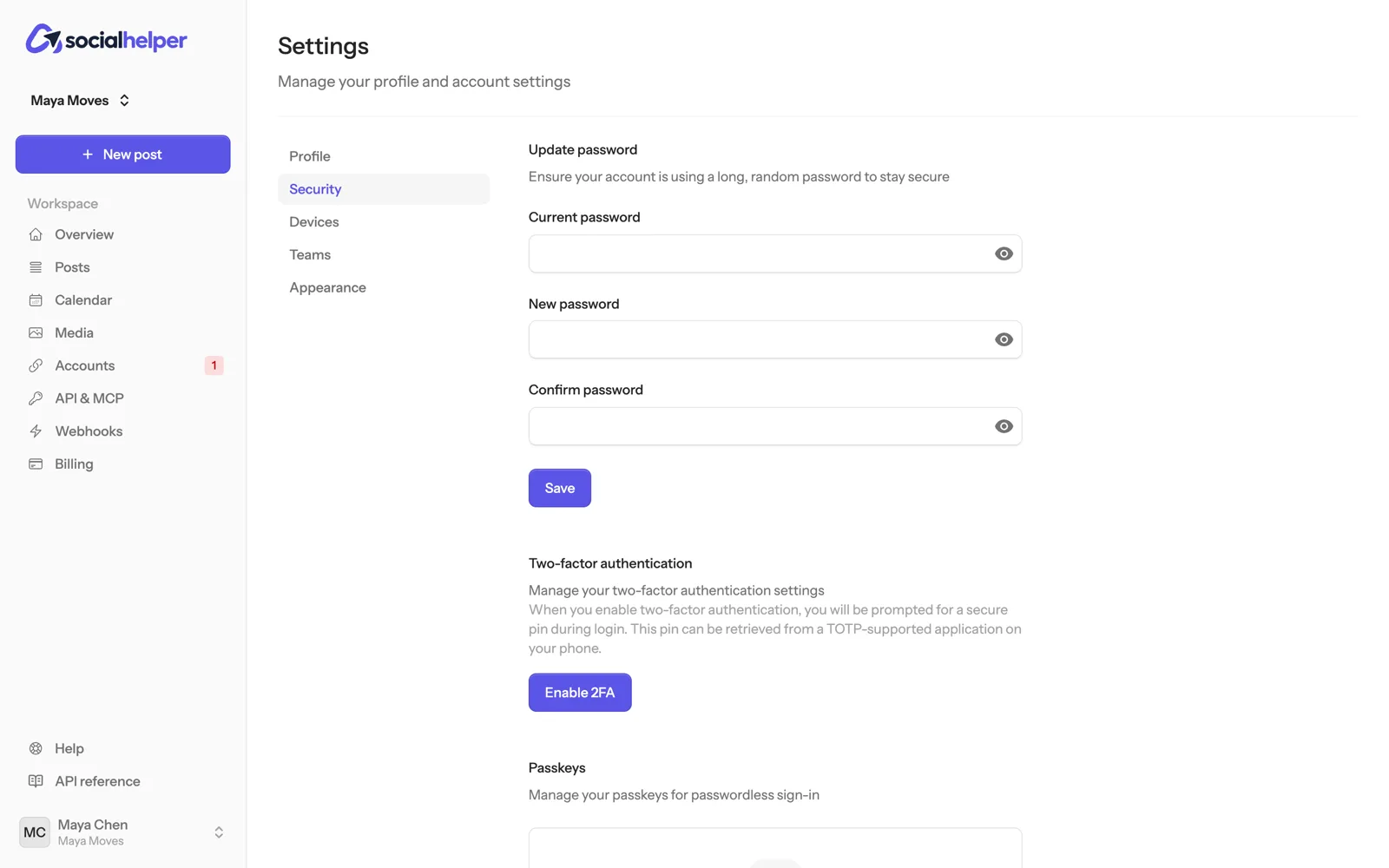
Your SocialHelper login can post to every account your team has connected, so it’s worth protecting. Everything on this page is under Settings: click your name at the bottom of the sidebar, then Settings.
Turn on two-factor authentication
With two-factor authentication on, signing in also asks for a 6-digit code from an authenticator app on your phone, such as Google Authenticator or 1Password.
- Go to Settings, Security, and click Enable 2FA.
- Scan the QR code with your authenticator app, or enter the setup key shown under it.
- Click Continue, enter the 6-digit code from the app and click Confirm.
- Click View recovery codes and save them in your password manager.
Sign in with a passkey
A passkey lets you sign in with your fingerprint, face or device PIN instead of a password.
- Under Passkeys on the Security page, click Add passkey.
- Give it a name you’ll recognise, such as “MacBook”, and click Register passkey.
- Follow your browser’s prompt.
Next time, click Sign in with a passkey on the login page. Remove a passkey you no longer use with Remove passkey. If the browser says passkeys aren’t supported, use another browser or your password.
Change your password
On the Security page, under Update password, enter your current password and a new one twice, and click Save. If you signed up with Google, use Forgot your password? on the login page to set one first.
Sign out a phone or browser
Settings, Devices lists phones signed in to the SocialHelper app and browsers with the SocialHelper extension. Click Sign out next to any you don’t recognise or no longer use; it will ask to sign in again.
See when support viewed your account
The Security page lists every time SocialHelper staff viewed your account to help you or to investigate a security issue. Support view is read-only and ends after 30 minutes.
Delete your account
- Go to Settings, Profile, and scroll to Delete account.
- Click Delete account, enter your password, and confirm.
The data deletion page explains what we delete and how to remove SocialHelper from each platform.