

AI assistants and reports
WordPress, Ghost and WooCommerce
Connect your blog or store and work with it from your assistant.
Connect your blog or online store, and your AI assistant can work with it next to your social accounts: list and draft posts, check sales, look up orders or create a coupon. You connect each site once with details you copy from it.
You need to be the team’s owner or an admin to connect a site. Your assistant can then use it: see Connect an AI assistant.
Connect a site
- Click Accounts, then Connect account.
- Click Connect next to your platform and fill in the form (below).
- Click Connect. The details are encrypted and never shown again.
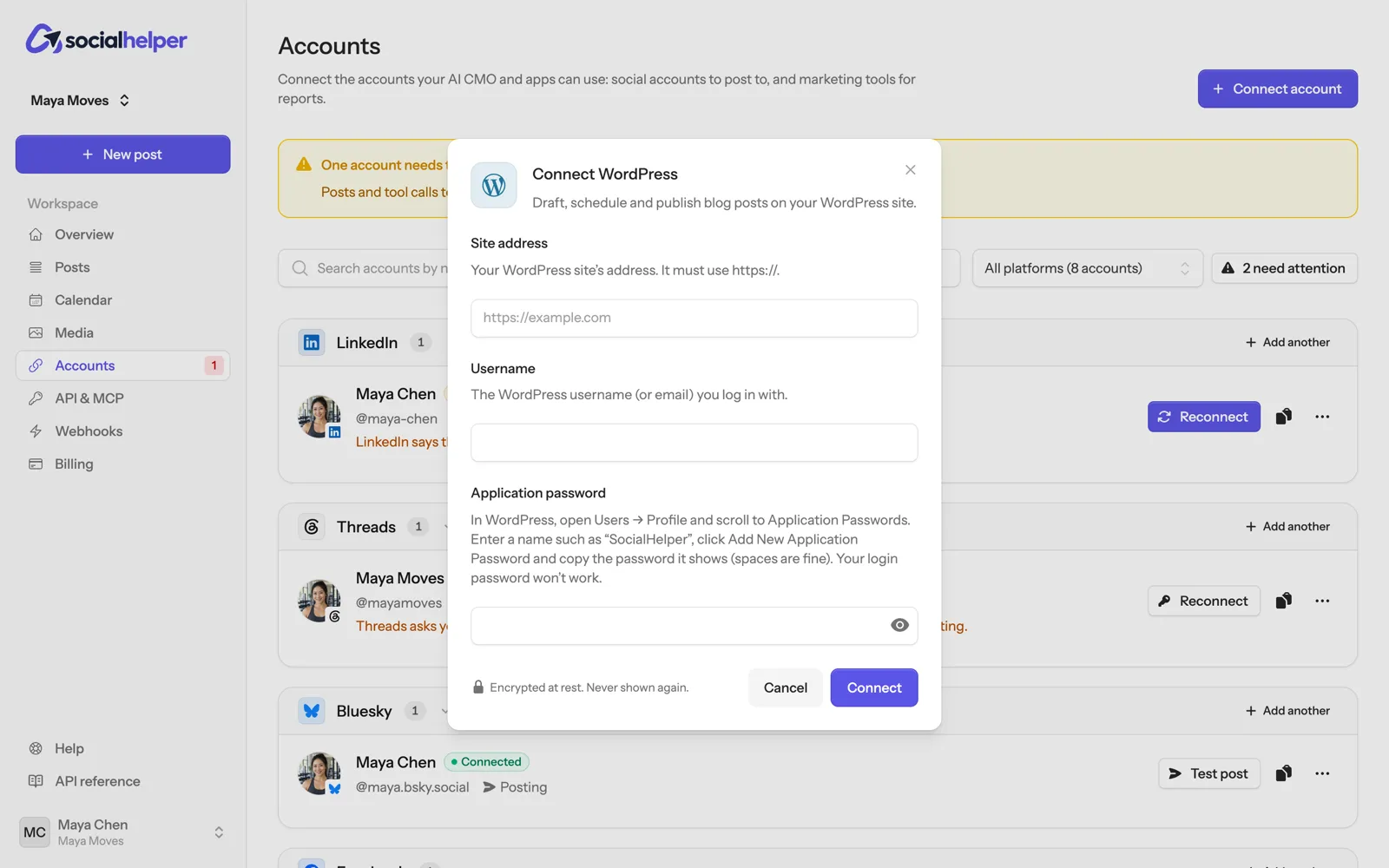
WordPress
The form asks for:
- Site address: Your WordPress site’s address. It must use https://.
- Username: The WordPress username (or email) you log in with.
- Application password: In WordPress, open Users → Profile and scroll to Application Passwords. Enter a name such as “SocialHelper”, click Add New Application Password and copy the password it shows (spaces are fine). Your login password won’t work.
Then you can ask:
- “List my last five blog posts.”
- “Draft a WordPress post about our autumn timetable, as a draft, not published.”
- “Add the tag “classes” to my latest post.”
WooCommerce
The form asks for:
- Store address: Your store’s address, as it opens in a browser. It must start with https://.
- Consumer key: In WordPress, open WooCommerce → Settings → Advanced → REST API and click Add key. Choose a user who can manage WooCommerce (an administrator or shop manager), set Permissions to Read (or Read/Write to let tools create coupons), click Generate API key, then copy the consumer key and secret.
- Consumer secret: Shown once, under the consumer key. It starts with cs_.
Then you can ask:
- “What were my sales last month, and my top five products?”
- “List today’s orders.”
- “Create a 15% coupon called AUTUMN15 that ends on Sunday.”
Ghost
The form asks for:
- Admin API URL: In Ghost Admin, open Settings → Integrations → Add custom integration, name it SocialHelper and save. Copy the API URL it shows: your site’s address, such as https://example.ghost.io.
- Admin API key: From the same integration, copy the Admin API key (not the Content API key). It is an ID, a colon, then a long code.
Then you can ask:
- “List my latest Ghost posts.”
- “Draft a newsletter post about this month’s events.”
Good to know
- Most of what the assistant does here only reads. Creating or updating a post, or creating a coupon, changes your site, and most assistants ask you before doing that.
- Ask for drafts when you want to review a post on your site before it’s published.
- On WordPress, new posts are created as the user whose details you entered, so connect with the account that should own them.
If something goes wrong
- The form says the details are wrong: check the address is your site’s full address with https://, and copy the password or key again.
- The site refuses the connection: a security plugin or firewall may block outside access to its API. Allow it for this user, or ask your host.