

Accounts
Connect your accounts
Add the social and marketing accounts you want SocialHelper to use.
Connect each account once, and SocialHelper can post to it from the dashboard, the app, the API or an AI assistant. You can connect several accounts on the same platform, such as two Instagram profiles.
Connect an account
- Click Accounts in the sidebar, then Connect account.
- Find the platform in the list, or type its name in Search platforms.
- Click Connect. If you already have an account on that platform, the button reads Add another.
- Finish the connection: sign in to the platform and approve access, or fill in the form (see below).
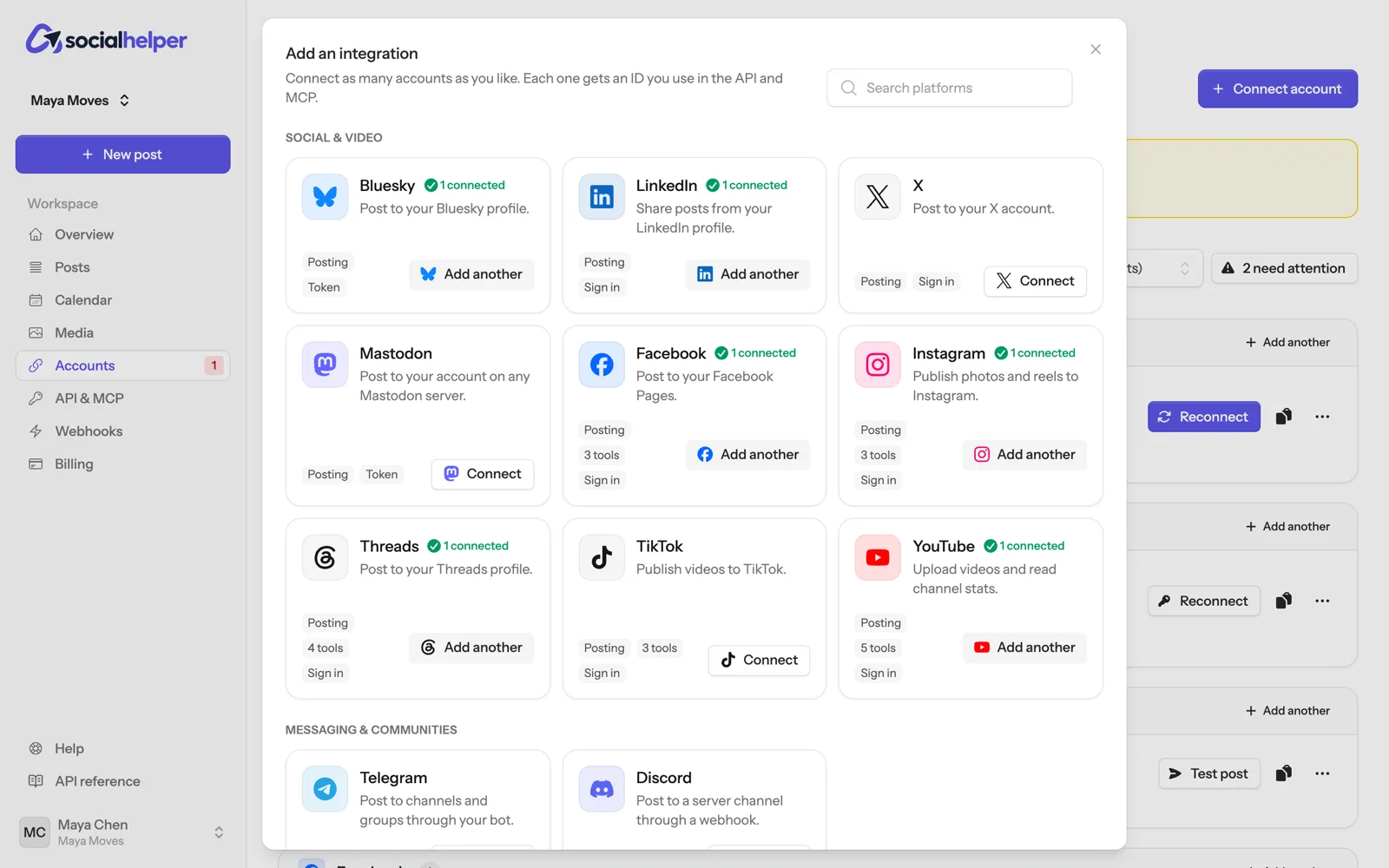
When you’re back on the Accounts page, the new account shows Connected. Each platform’s own page lists what it accepts: text length, photos, videos and options.
Platforms you sign in to
Facebook, Instagram, X, YouTube, TikTok, LinkedIn, Threads, Tumblr.
You’re sent to the platform to sign in. Approve every permission it asks for: if you turn one off, the matching feature won’t work, and the account shows Reconnect to allow with what’s missing. Then you come back to SocialHelper.
If you manage several pages or profiles on one login (Facebook Pages, for example), the platform asks which ones to share. Only the ones you pick are connected.
Platforms that use a token or password
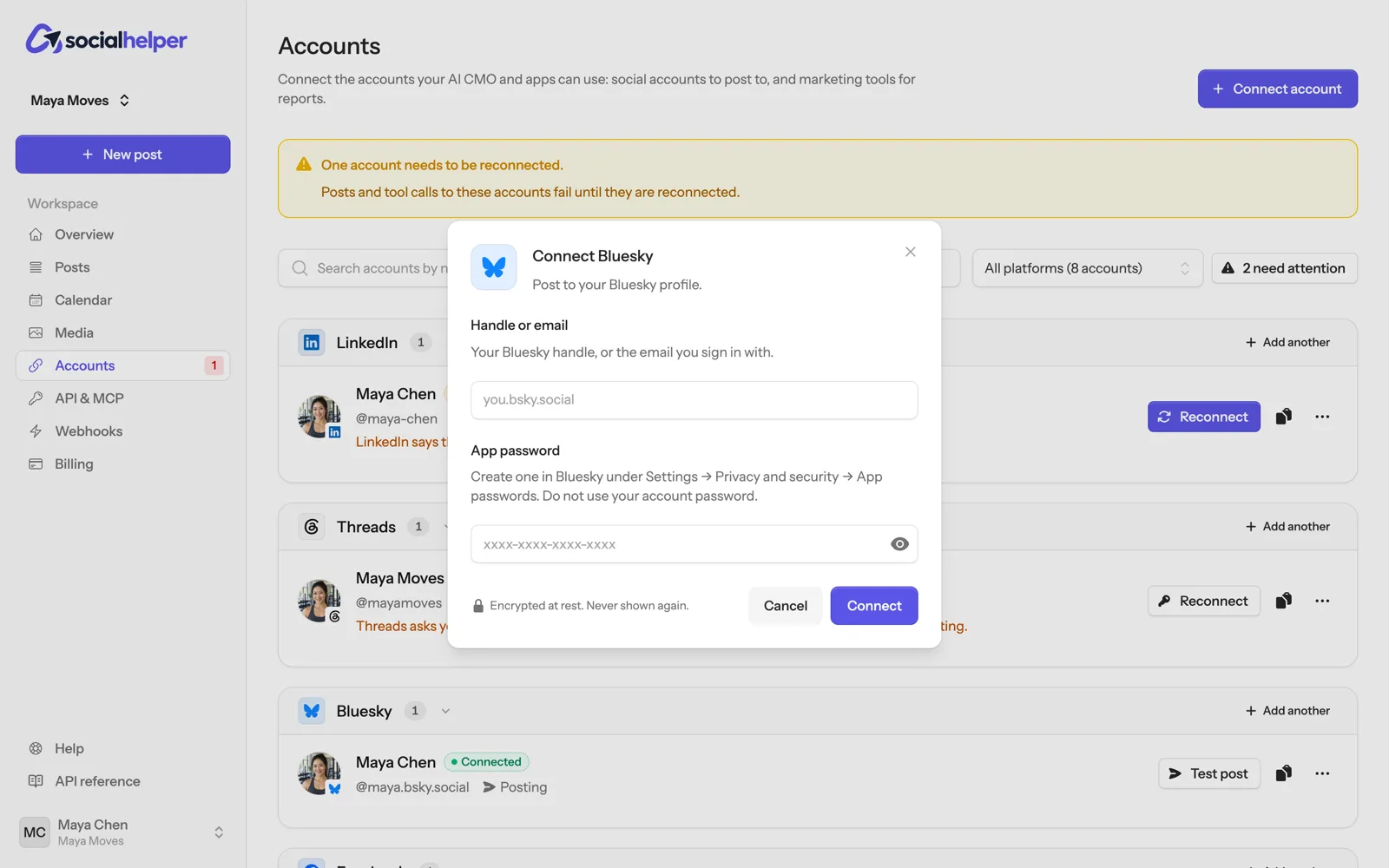
These ask for details you copy from the platform. They’re encrypted when you save them and never shown again.
Telegram
- Bot token: Create a bot with @BotFather and paste the token it gives you. Then add the bot to your channel as an administrator allowed to post messages.
- Channel or group: The public @username, or the numeric chat id of a private channel or group, such as -1001234567890.
Discord
- Webhook URL: In Discord, open the channel’s settings → Integrations → Webhooks → New Webhook, then click Copy Webhook URL.
Bluesky
- Handle or email: Your Bluesky handle, or the email you sign in with.
- App password: Create one in Bluesky under Settings → Privacy and security → App passwords. Do not use your account password.
Mastodon
- Server: The address of your Mastodon server.
- Access token: In Mastodon, open Preferences → Development → New application. Tick the scopes read:accounts, read:statuses, write:statuses and write:media, save, then open the application and copy “Your access token”.
Marketing tools, websites and stores
Some accounts don’t receive posts. They give you reports and lookups instead, which you use from an AI assistant or the API.
- Google Search Console, Google Analytics, Google Ads: sign in with the Google account that has access. One connection covers every property or ad account that login can see.
- WordPress, WooCommerce, Ghost: see WordPress, Ghost and WooCommerce.
Send a test post
To check a connection, click Test post next to the account on the Accounts page, change the text if you like, and click Publish test post.
Account IDs
Every connected account has an ID. You only need it for the API: click the copy icon next to the account to copy it. AI assistants find accounts by name.
If something goes wrong
- You came back without a connected account: the sign-in was cancelled or a permission was refused. Click Connect again and approve everything.
- The form says the details are wrong: copy them again from the platform, making sure you get the whole value. Tokens and app passwords are long.
- The account shows Needs reconnect later on: see Keep accounts connected.