

Schedule and track
Schedule posts and use the queue
Pick a time, or set weekly posting times and add posts to the queue.
There are two ways to send a post later. Schedule sends it at a date and time you pick. Add to queue sends it at your next free posting time, from a weekly list of times you set once. Both are under When in the composer.
Schedule a post for a time
- Write the post in the composer and pick the accounts.
- Under When, click Schedule.
- Click a quick pick such as Tomorrow, 09:00, or set the Date and time field.
- Click Schedule at the bottom of the page.
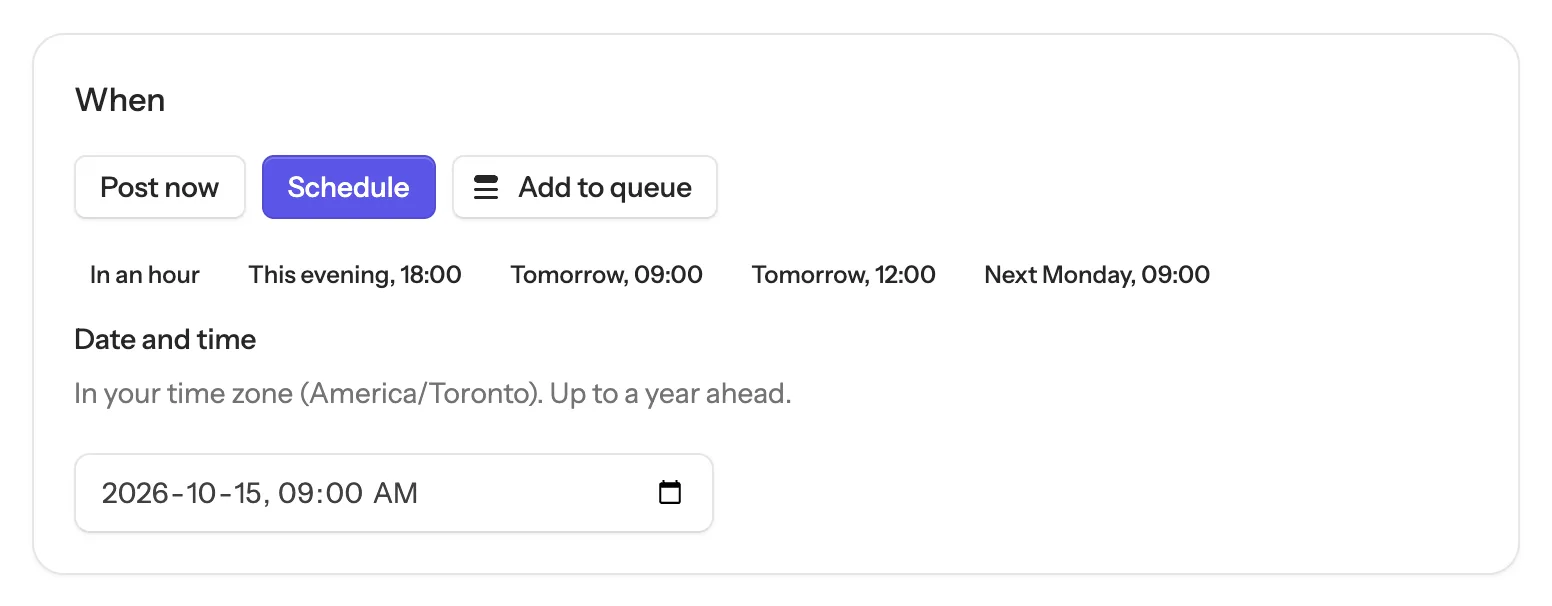
Times are in your own time zone, shown under the field. You can schedule up to 1 year ahead. The post goes out within about a minute of its time.
Set your posting times
If you post at the same times every week, set them once and let the queue fill them.
- Click Calendar in the sidebar, then Posting times.
- Pick a Day and a Time and click Add. To add the same time to several days, click Every weekday or Every day instead.
- Check the Time zone, then click Save posting times.
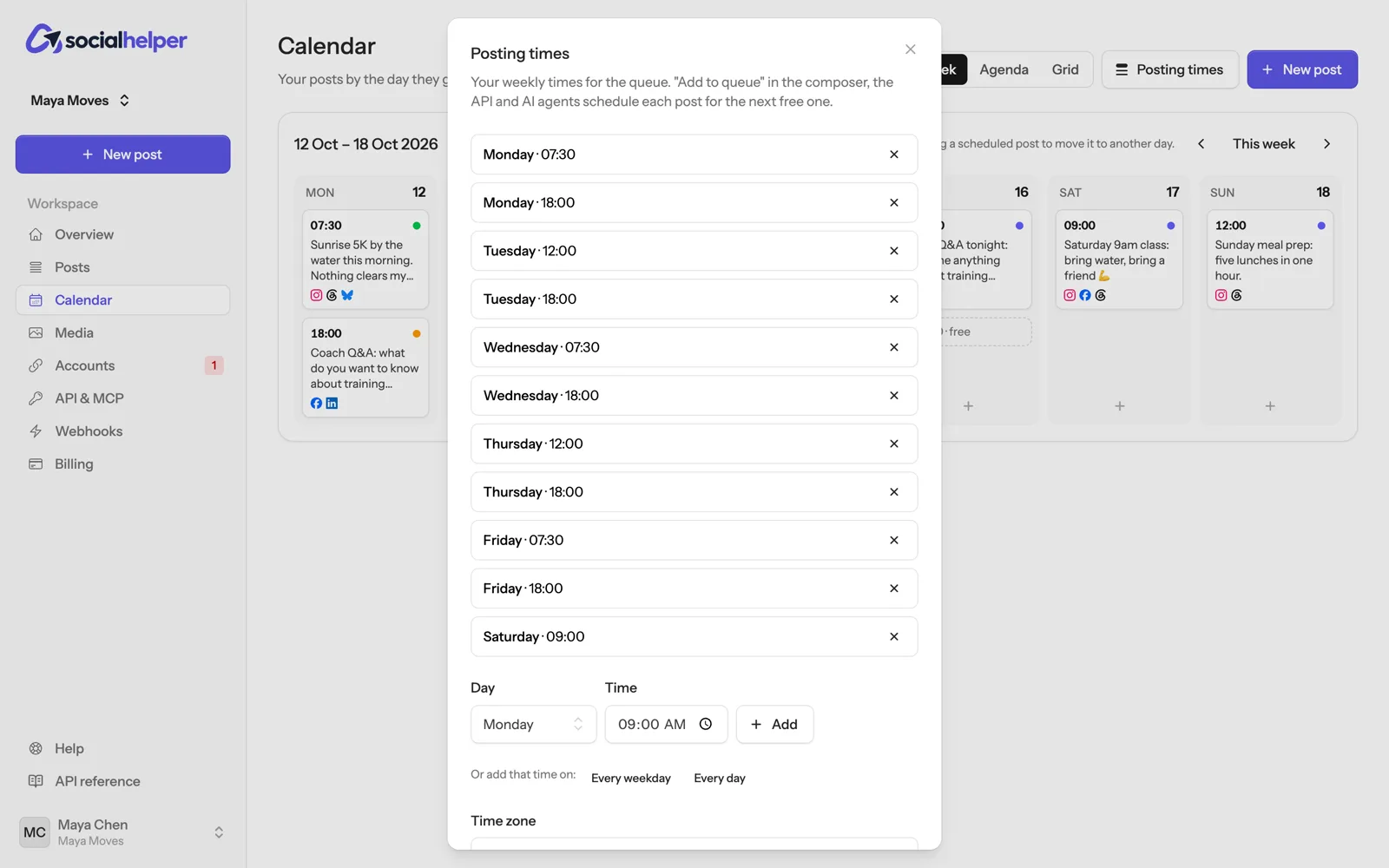
You can have up to 70 posting times a week. They belong to the team, so everyone’s queued posts share them. Remove one with the × next to it.
Add a post to the queue
- In the composer, under When, click Add to queue. It shows the next free posting time.
- Click Add to queue at the bottom of the page.
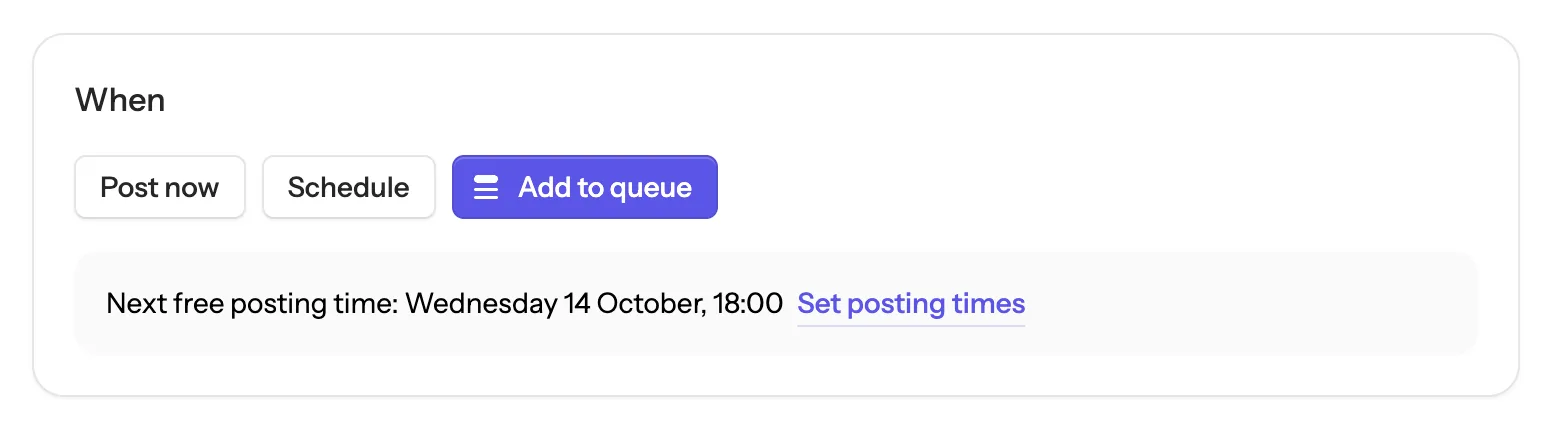
A posting time is free when no other scheduled post of your team uses it. Posts you add one after another take the next free times in order. Posts sent from the SocialHelper app, the API or an AI assistant use the same queue.
Change or cancel a scheduled post
Open the post from Posts or the calendar and click Edit to change its text, media, accounts or time, or Cancel to stop it. You can do this until about a minute before it goes out. To move a post to another day, drag it in the calendar’s week view: see Plan on the calendar.
If something goes wrong
- “Pick a time in the future to schedule the post”: the time has passed, or is less than a minute away. Choose a later one.
- “You have no posting times yet”: set them first, as above. The composer’s Set posting times link takes you there.
- “Every posting time in the next 12 weeks is taken”: add more posting times, or schedule the post for a specific time.