

Create posts
AI writer, drafts and snippets
Get help with the wording, save posts to finish later, and reuse text.
Three tools in the composer help with the words: the AI writer drafts and rewrites posts, drafts keep a post until you’re ready, and snippets save text you use often, like hashtag sets or a sign-off. Drafts and snippets are shared with everyone on your team.
Rewrite a post with the AI writer
- In the composer, write your post, then click AI writer under the text box.
- Pick a change: Make it shorter, Make it longer, Make it friendlier, Make it more professional, Fix spelling and grammar, Add emoji, Add hashtags. Or type your own under How should it change?, for example “mention we open at 7am”, and click Write.
- Read the suggestion. Click Use this to replace your text, Add below to keep both, Try again for another version, or Dismiss.
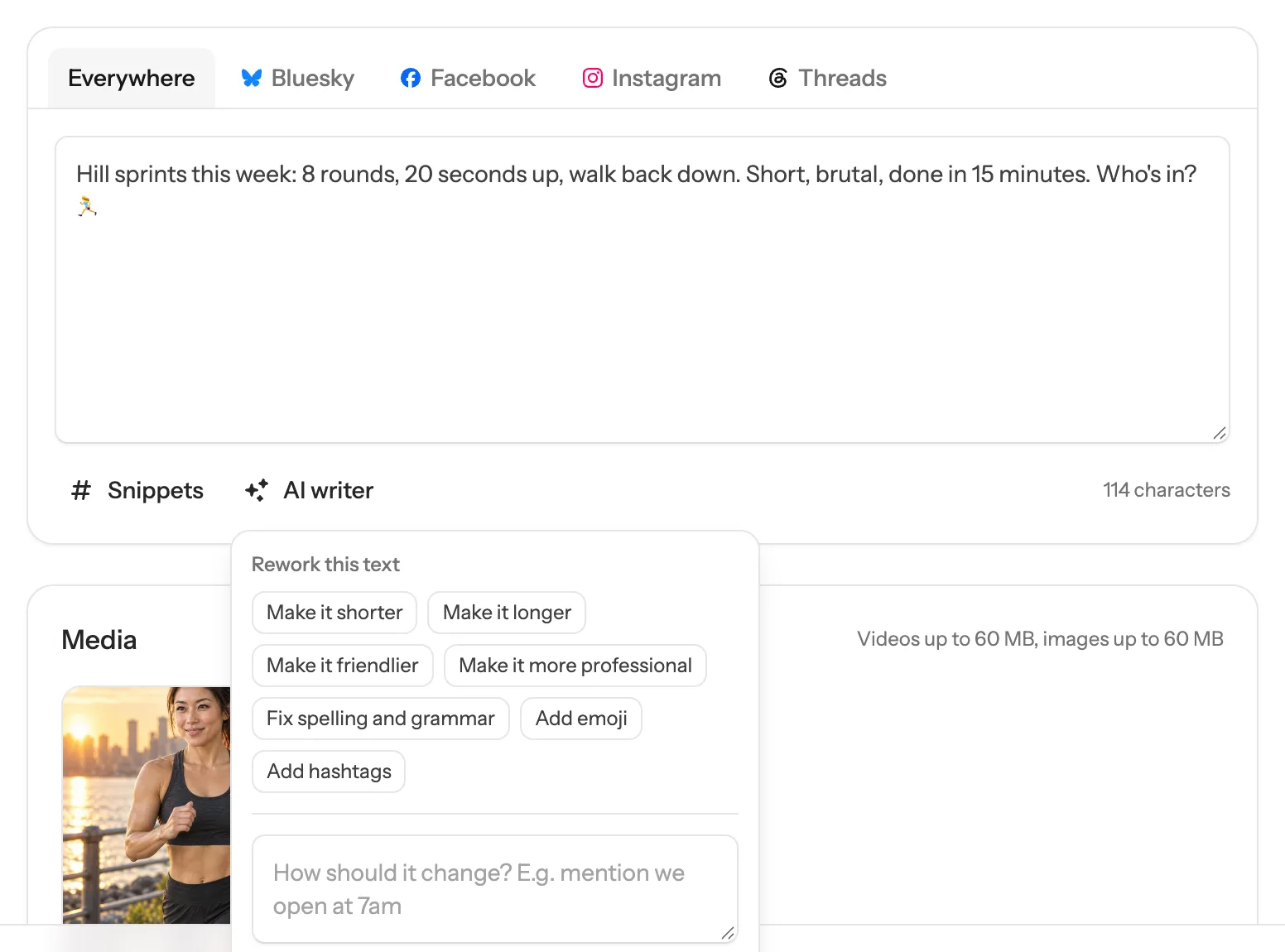
Always read what it wrote before you post: it can get facts wrong.
Draft a post from a brief
With the text box empty, click AI writer, describe the post under What should the post say? (for example “our autumn menu starts Monday”) and click Write.
Make a post fit one platform
When the text is too long for a platform, open that platform’s tab and click Shorten to fit, then Use this. The shorter version becomes that platform’s own text; the others keep the original.
How many AI writes you get
Each suggestion counts as one AI write for your team. The Early access plan includes 100 a month. The AI writer menu shows how many are used, and the count resets each month. See Plans and billing.
Save a draft
- In the composer, click Save draft at the bottom.
- To pick it up again, open Posts and the Drafts tab, or click the drafts button next to New post on the Overview page.
- Open the draft, finish it and send it. It leaves the drafts list once it’s sent.
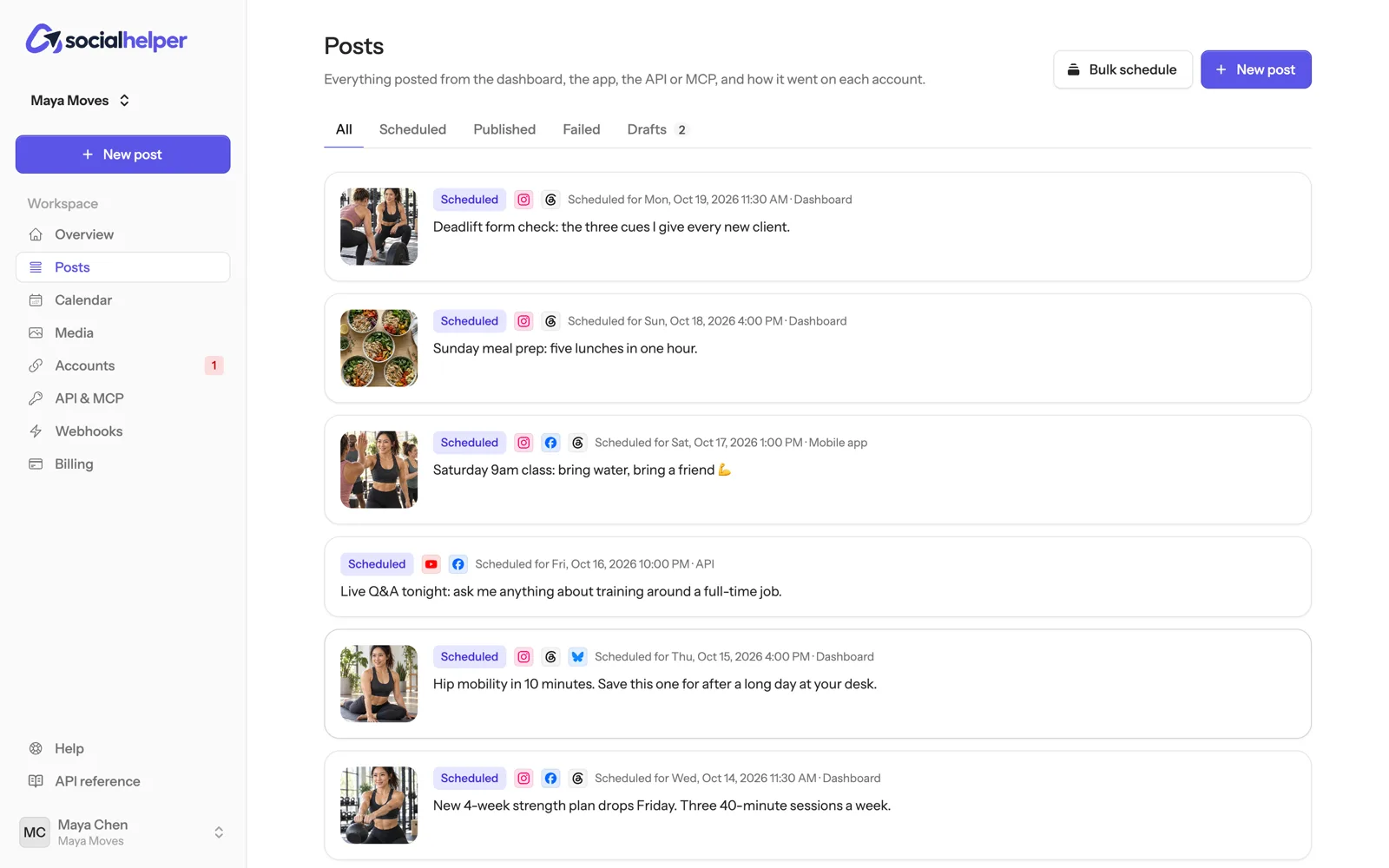
A draft keeps the text, media and accounts. Drafts saved in the SocialHelper app appear here too. To throw one away, open it and click Delete draft.
Reuse text with snippets
- In the composer, click Snippets under the text box.
- Click a snippet to add it to the end of the text. On a platform tab with its own text, it’s added there.
- To make one, click Add snippet, give it a name if you like, type the text and click Save snippet.
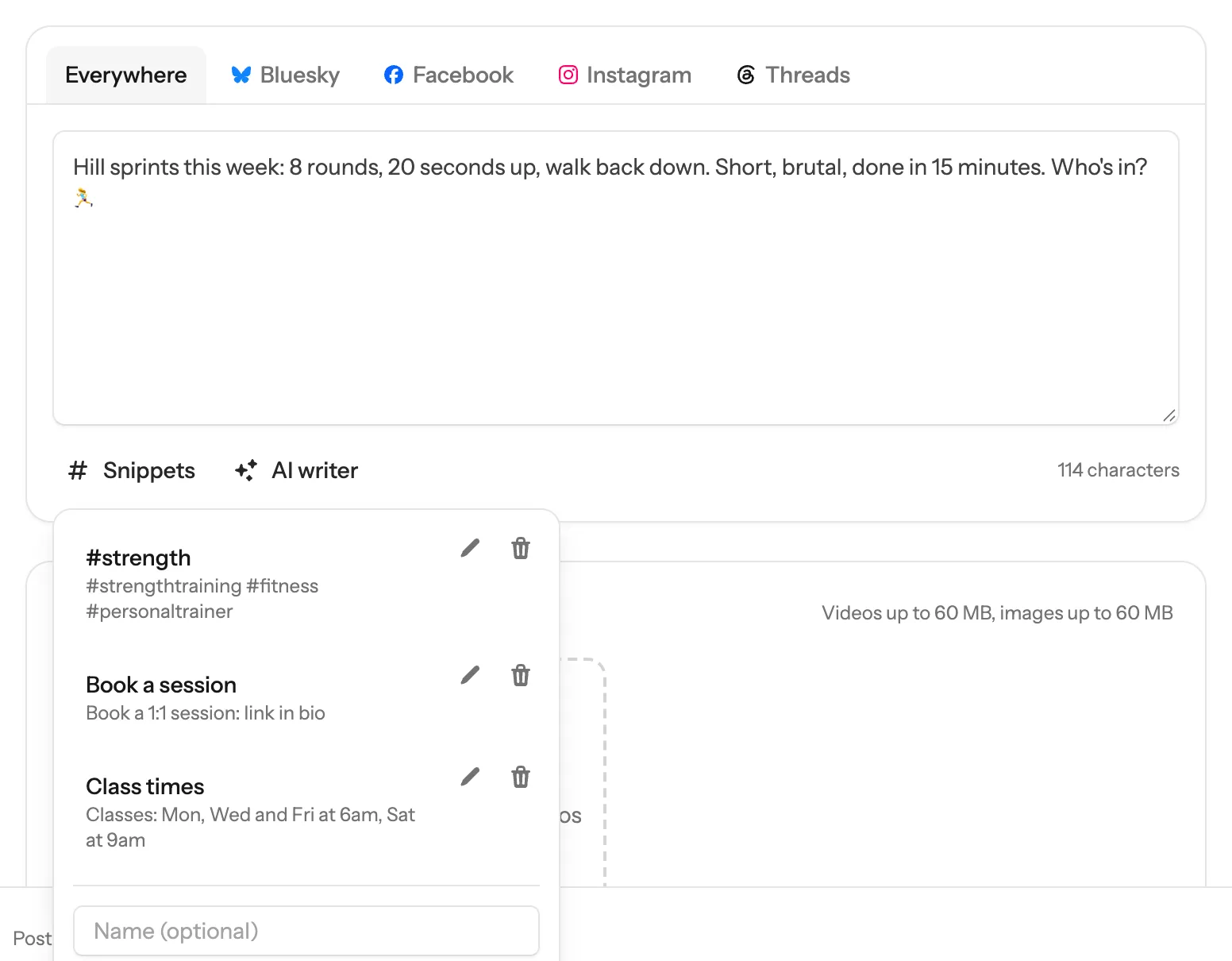
Use the pencil and bin icons to edit or delete a snippet. Changes apply for the whole team.
If something goes wrong
- “The AI writer comes with paid plans”: your plan doesn’t include AI writes.
- The monthly AI writes are used up: the writer is available again when the count resets.
- A suggestion doesn’t appear: click Try again. If it keeps failing, write the post yourself and try the writer later.