

Create posts
Photos and videos
Add media to a post, crop and adjust photos, trim videos and pick a cover.
Add photos and videos to a post in the composer, then crop and adjust photos, trim or mute videos, and choose the frame used as a video’s cover. Everything you upload is kept in your team’s Media library.
Add photos or videos
- In the composer, under Media, click Add photos or videos.
- Pick one or more files. A post can have up to 20.
- Under each photo, fill in Alt text to describe it for people using screen readers.
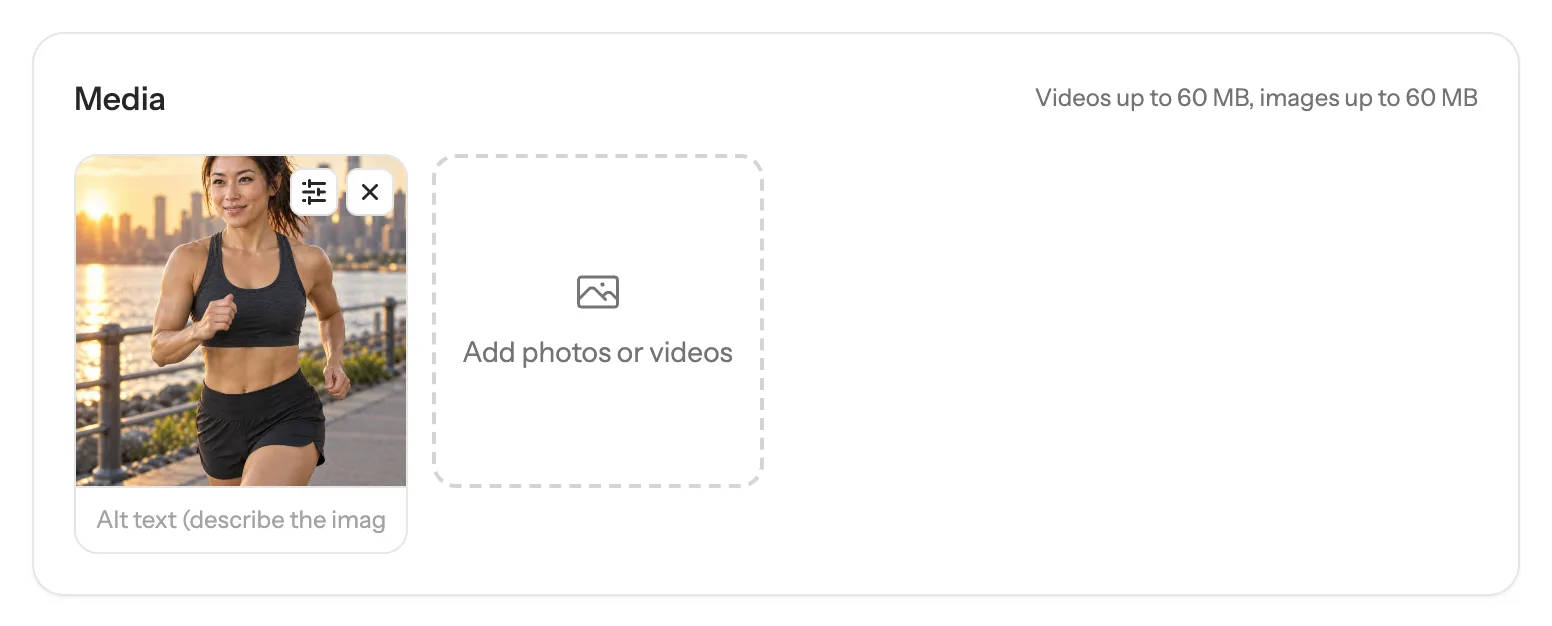
The Media card shows the largest photo and video you can add. To change the order, use Move earlier and Move later on a tile. Remove takes a file out of the post but keeps it in the library.
Each platform takes different media: some need a video, some take only one. Checks tells you when a platform can’t use what you added.
Crop and adjust a photo
- Click Edit photo on the photo’s tile.
- Under Shape, pick a ratio such as 1:1 or 4:5, or Free, and drag the crop box.
- Use Turn and Flip to straighten it, and the Brightness, Contrast and Saturation sliders to adjust it.
- Click Use this photo. Start over undoes everything.
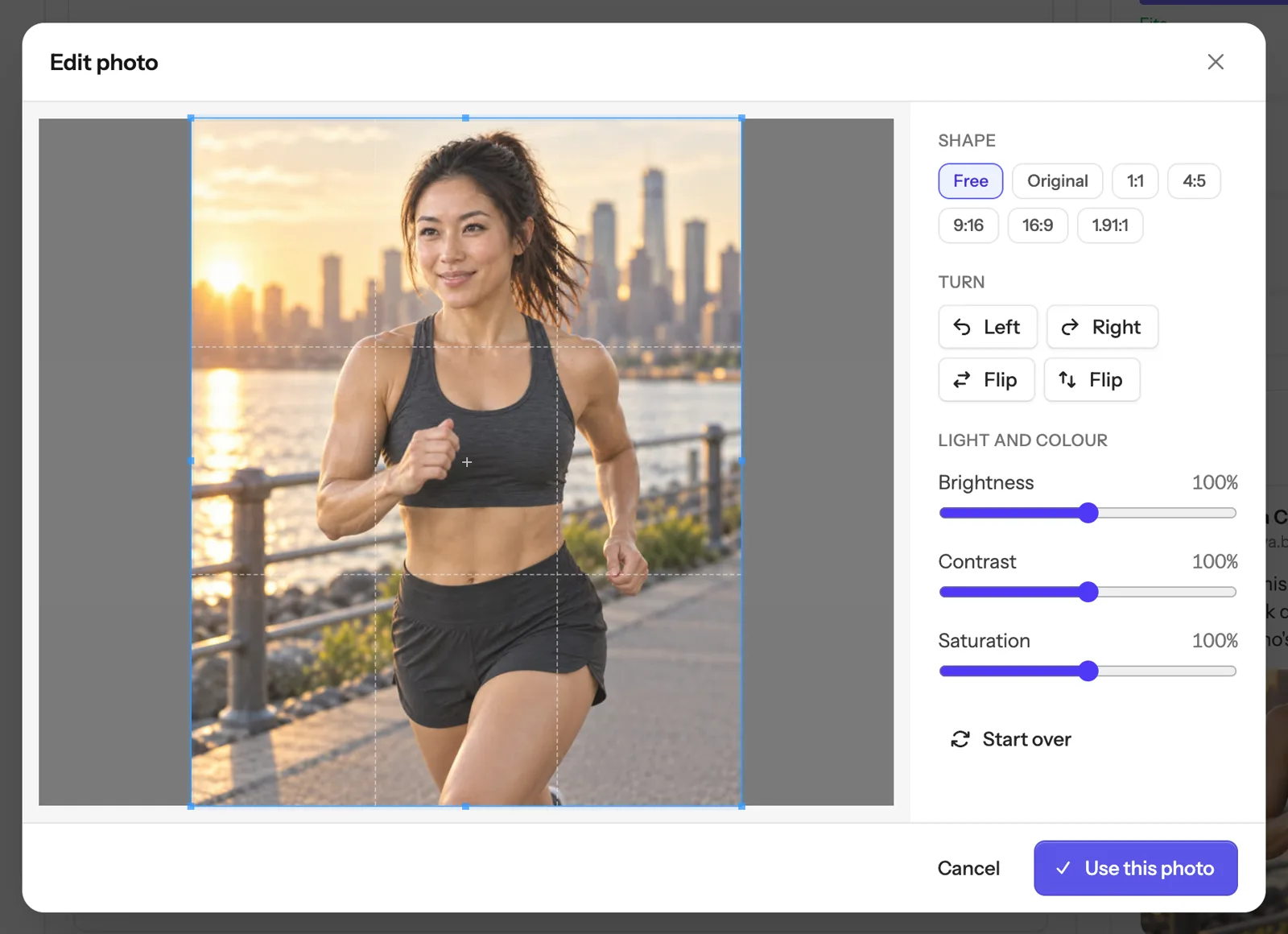
The edited photo replaces the original in this post. The original stays in your Media library. Trimmed videos work the same way.
Trim or mute a video
- Click Trim or mute video on the video’s tile.
- Drag Start and End, or play the video and click Start at the current frame and End at the current frame.
- Tick Remove the sound to mute it.
- Click Use this video.
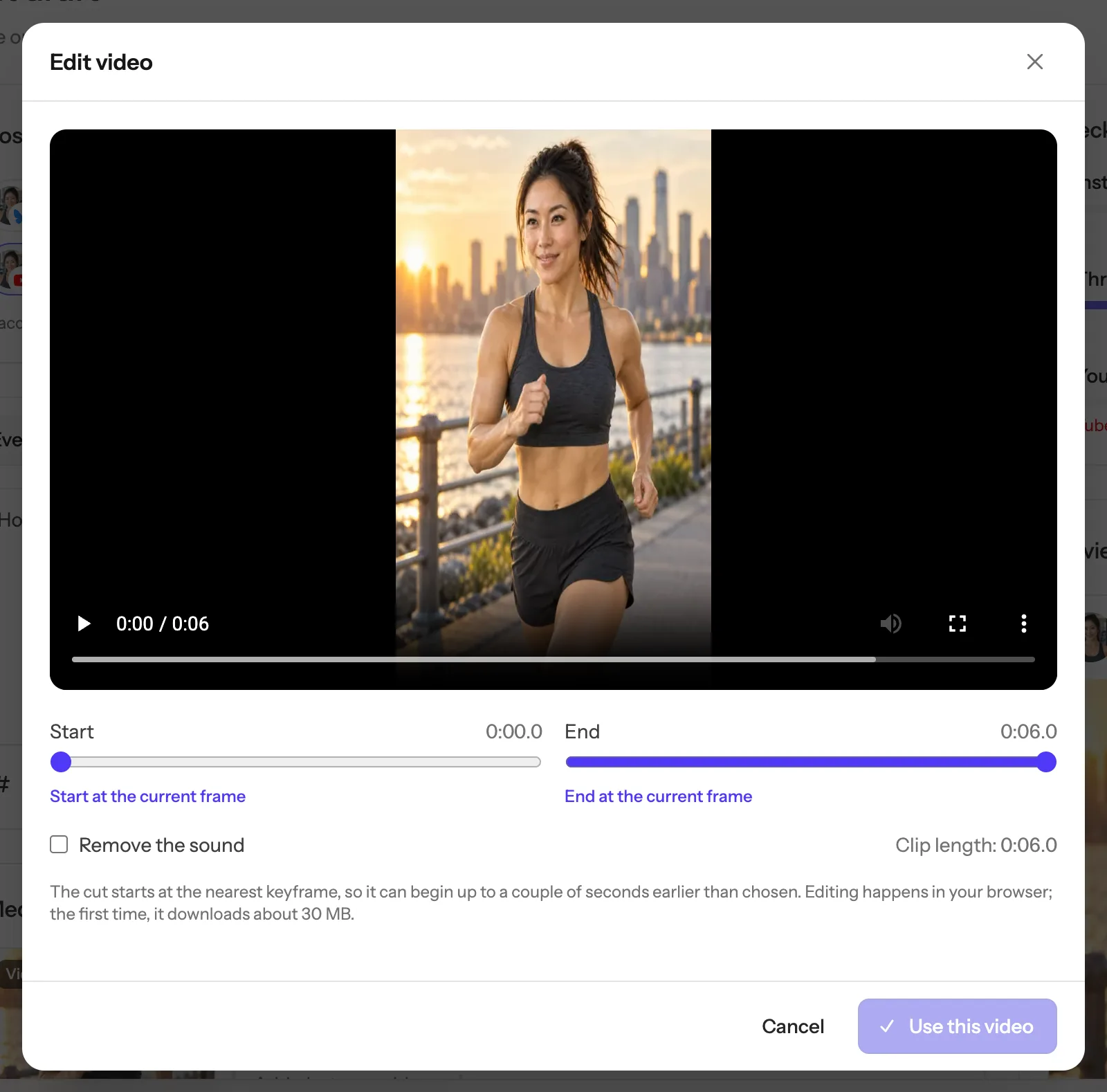
Editing happens in your browser. The first time, it downloads about 30 MB, so give it a moment. The cut starts at the nearest keyframe, which can be up to a couple of seconds before the point you chose.
Choose a video’s cover
- Click Choose the cover frame on the video’s tile.
- Drag the Frame slider to the moment you want.
- Click Use this frame, or Use the default to let each platform choose.
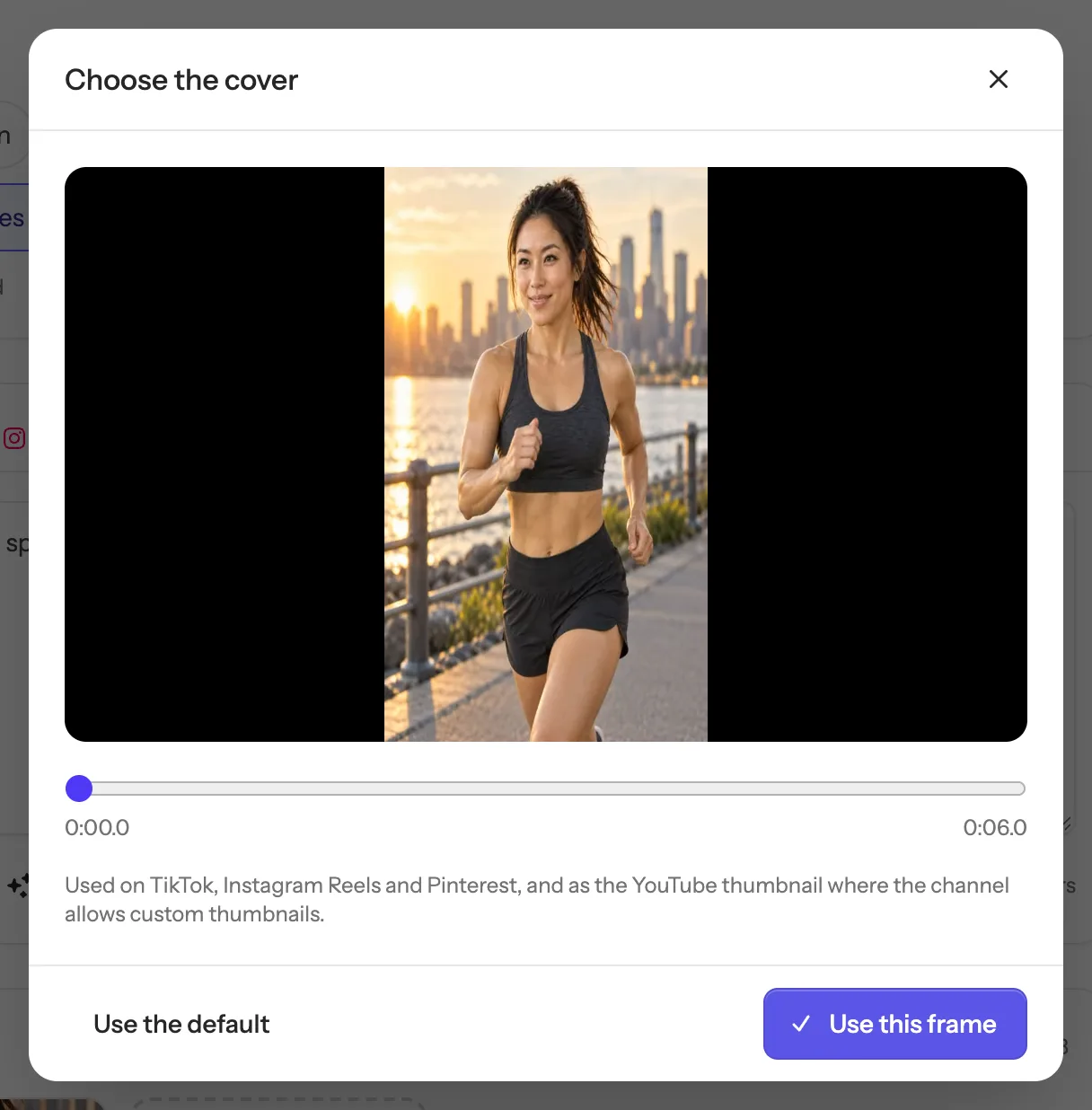
The cover is used on TikTok, Instagram Reels and Pinterest, and as the YouTube thumbnail where the channel allows custom thumbnails.
The Media library
Click Media in the sidebar to see every photo and video your team has uploaded, from the dashboard, the app, the API or an AI assistant.
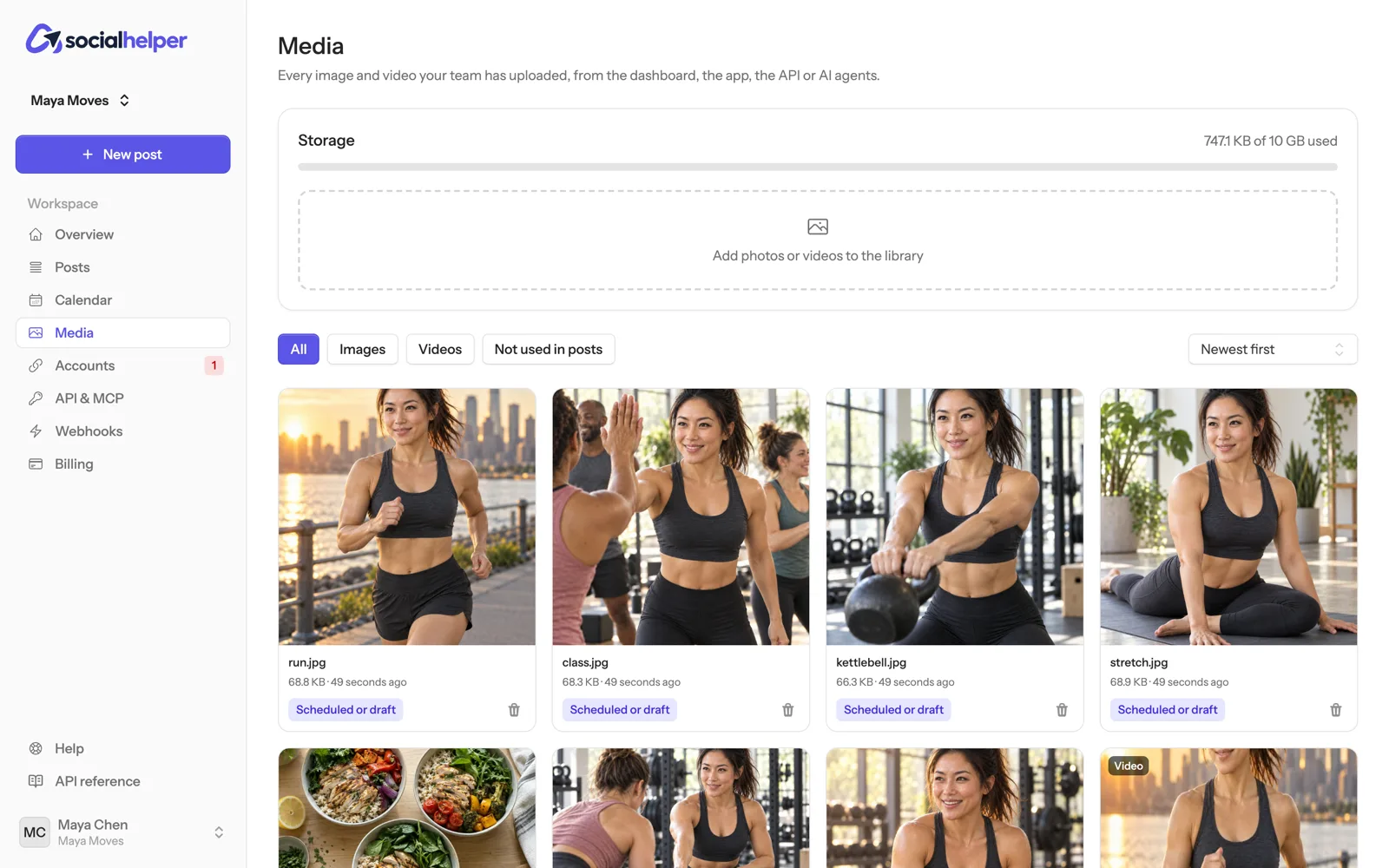
- Filter by Images, Videos or Not used in posts, and sort by newest or largest.
- The Storage bar shows how much of your plan’s storage is used.
- To free space, click the bin icon on a file and confirm. Files marked Scheduled or draft are still needed and can’t be removed until that post goes out or the draft is deleted.
If something goes wrong
- “Files can be at most …”: the file is over the size limit. Compress or trim it first.
- “The upload failed”: check your connection and try again.
- “This video could not be edited in the browser”: try another file, or trim it before uploading.
- Storage is full: remove files you don’t need on the Media page, or see Plans and billing.