

Schedule and track
Check how a post went
Statuses, the timeline for each account, and what to do when a post fails.
The Posts page lists everything your team has posted or scheduled, from the dashboard, the app, the API or an AI assistant, and how it went on each account. Open a post to see the details and fix one that failed.
Find a post
Click Posts in the sidebar. Use the tabs to show Scheduled, Published, Failed or Drafts. Each post shows its status, accounts, time and where it came from.
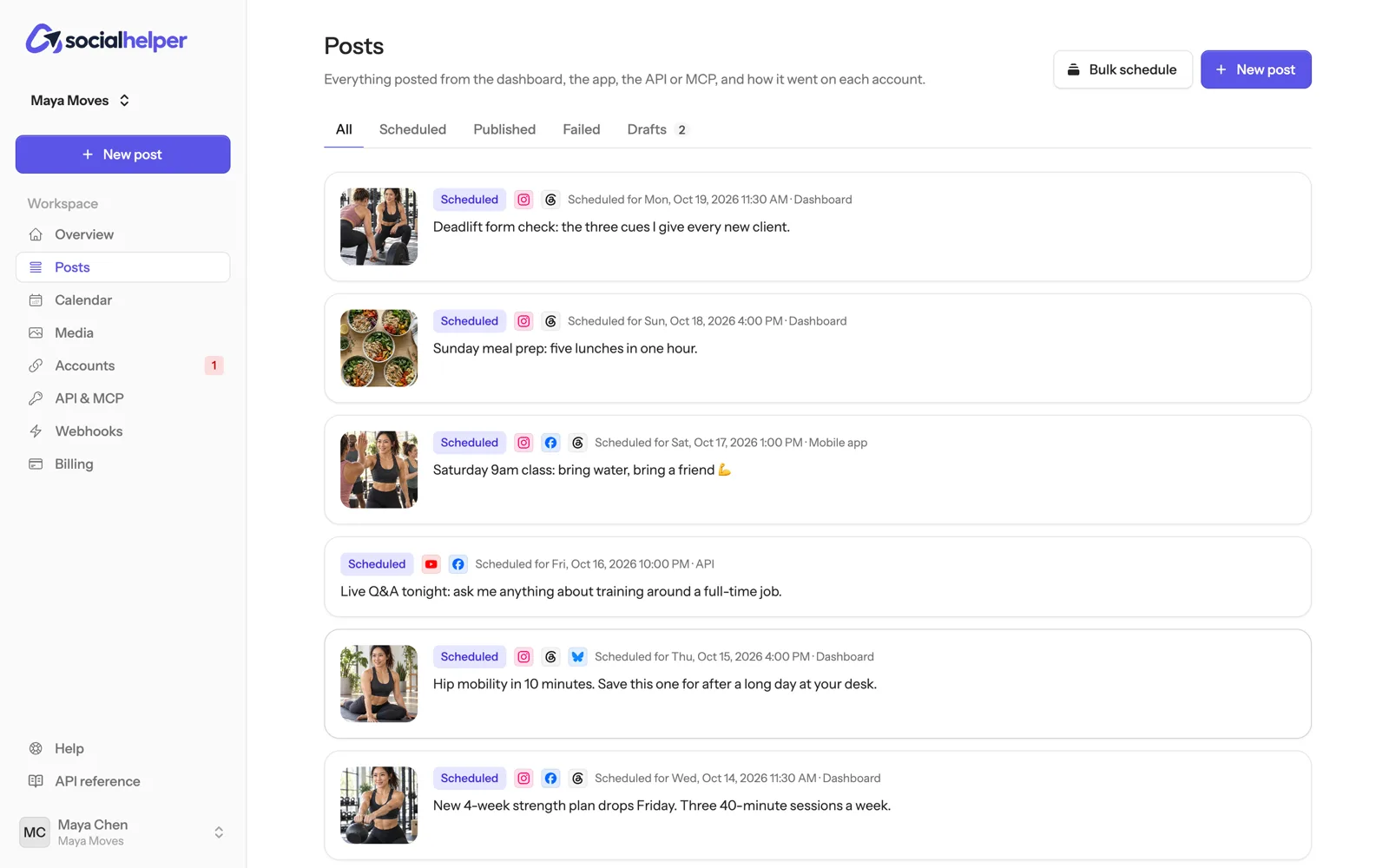
The Overview page also counts scheduled, published and failed posts for the last 30 days.
What the statuses mean
- Scheduled: waiting for its time.
- Publishing: going out now. The post’s page updates by itself until every account is done.
- Published: live on every account.
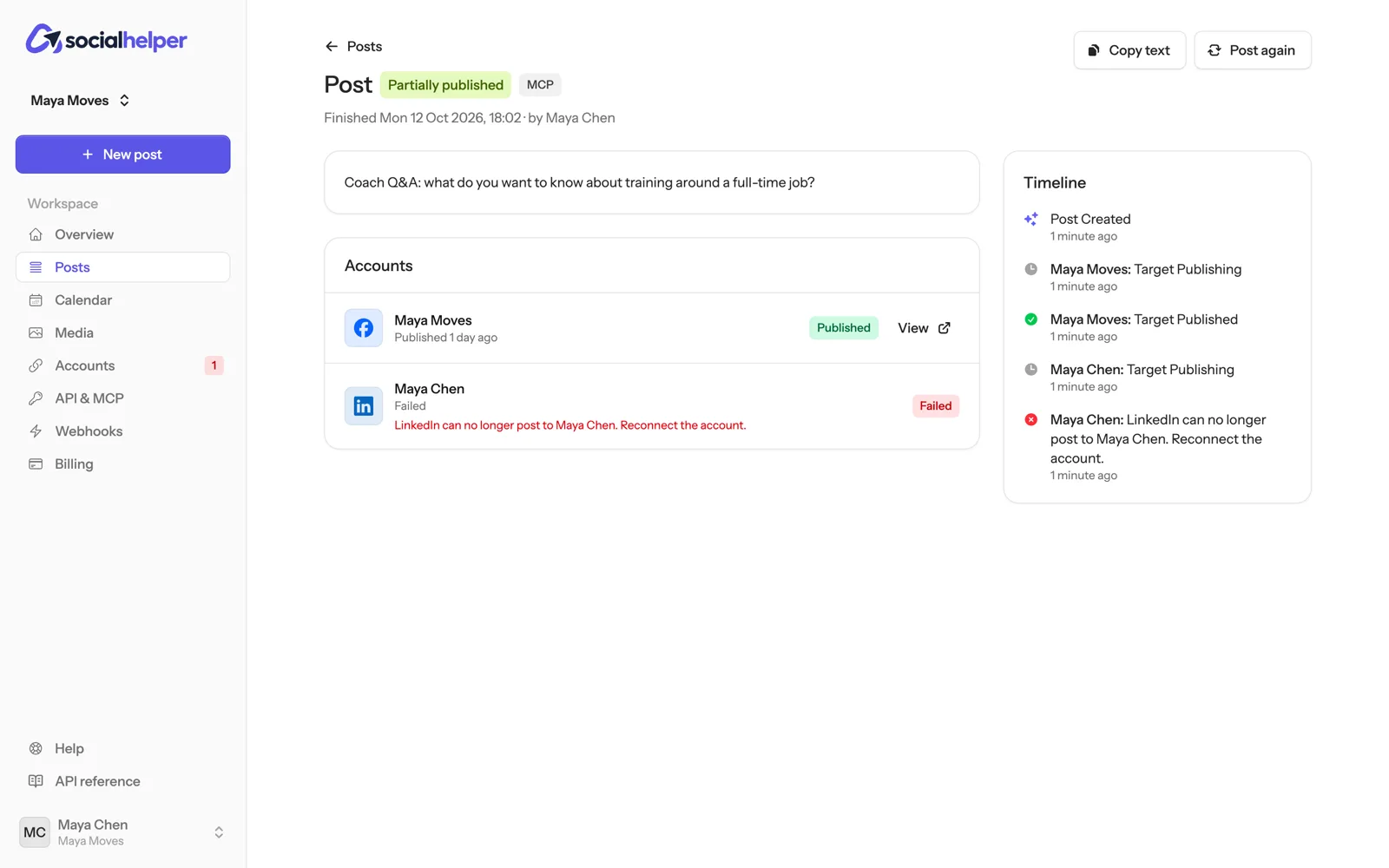
- Partially published: live on some accounts, failed on others.
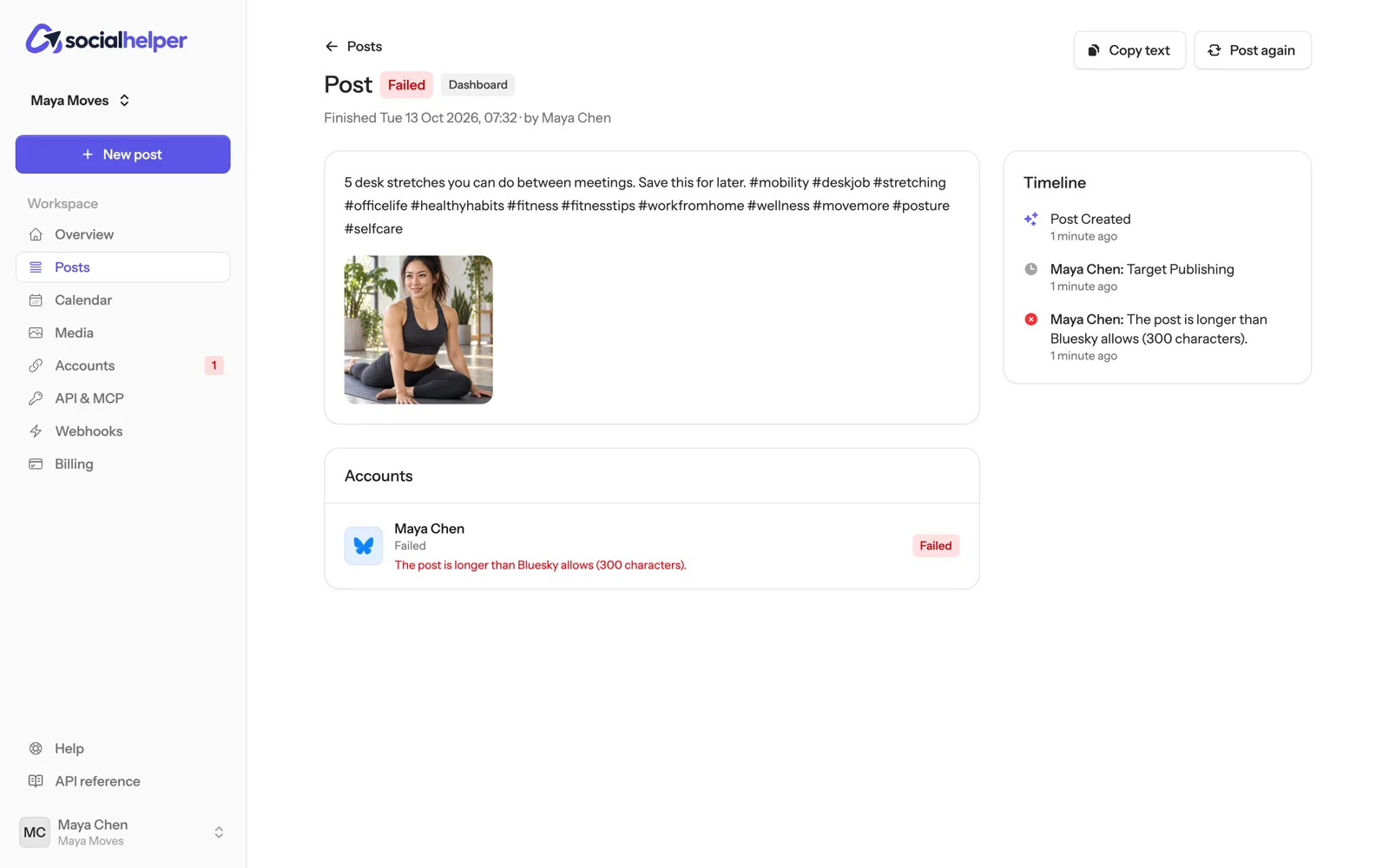
- Failed: it didn’t go out on any account.
- Cancelled: you cancelled it before it went out.
See how it went on each account
Click a post. Under Accounts, each account shows its own status. Published ones have a View link to the live post; failed ones show what the platform said. The Timeline on the right lists every step, with times.
Automatic retries
When a platform is busy or briefly down, SocialHelper tries again by itself, up to 3 more times (after 1 min, 5 min, 15 min). The account shows Next attempt with the time. A post is never sent twice: if SocialHelper can’t tell whether a platform published it, it checks before trying again, or marks it failed so you can decide.
Fix a failed post
- Open the post and read the reason next to each failed account.
- Fix the cause (see below).
- Click Post again. A copy opens in the composer with the same text, media and accounts.
- Under Post to, unselect the accounts where it was already published, so they don’t get it twice.
- Make your changes and send it.
Common reasons a post fails
- The account lost access: the message asks you to reconnect. See Keep accounts connected, then post again.
- The platform rejected the content: for example text or media it doesn’t allow. Change it for that platform with its own text in the composer.
- A platform limit: some platforms cap how many posts an account can make in a day. Post again later.
- A plan limit: see Plans and billing.
Developers can get each result as it happens with webhooks: see Receiving webhooks.