

Schedule and track
Schedule many posts at once
Upload a batch of videos or photos, caption each one and schedule them all.
Bulk schedule turns a batch of videos or photos into separate posts in one go: upload them, write a caption for each, pick the accounts, and schedule them all into your queue or spread out over days. It suits a week of Reels, Shorts and TikToks shot in one session.
Each post in a batch has one video or photo. Up to 20 posts at a time. To post several photos together, use the composer.
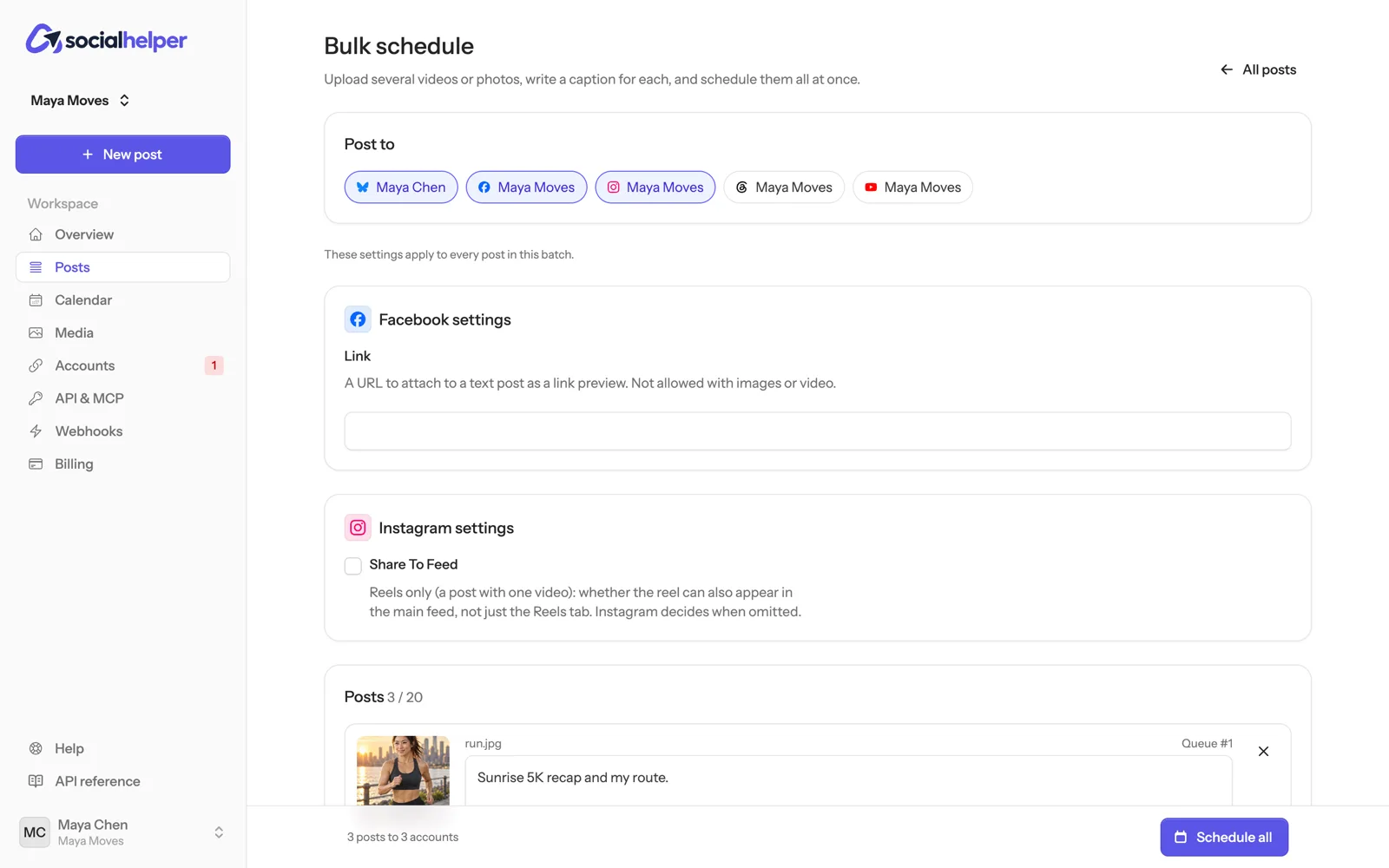
Schedule a batch
- Click Posts in the sidebar, then Bulk schedule.
- Under Post to, click the accounts. Every post in the batch goes to them.
- Fill in any platform settings that appear. They apply to every post in the batch, TikTok’s posting options included.
- Click Add videos or photos and pick several files at once. Each one becomes a post.
- Write a Caption for each post. For YouTube, the first line of the caption becomes the video title.
- Under When, choose how to space them out (below), then click Schedule all.
Choose when they go out
- Add to the queue: each post takes the next free posting time, in the order listed. You need posting times set up: see Set your posting times.
- Spread out: set the First post time, then Then every hour, few hours, day or week. The posts follow in the order listed.
Once scheduled, each post appears on the calendar and the Posts page, and you can edit or cancel it like any other.
If something goes wrong
- “Fix the highlighted posts, then schedule again”: nothing was scheduled. The highlighted posts don’t fit a platform, usually a caption that’s too long or a photo going to a video-only platform. Fix them and click Schedule all again.
- “… of … scheduled. The rest couldn’t be”: some posts went through. The ones left in the list say why; fix them and schedule again.
- “You have no posting times yet”: set posting times, or choose Spread out.