

Schedule and track
Plan on the calendar
See your posts by day, move them, and preview your Instagram grid.
The Calendar shows every post by the day it goes out, whether it was made in the dashboard, the app, the API or by an AI assistant. Use it to spot gaps, move posts around, and check your Instagram grid before anything goes live. Times are shown in your own time zone.
Plan the week
Click Calendar in the sidebar, then Week. Each day lists its posts with their time and accounts, and a coloured dot shows each post’s status.
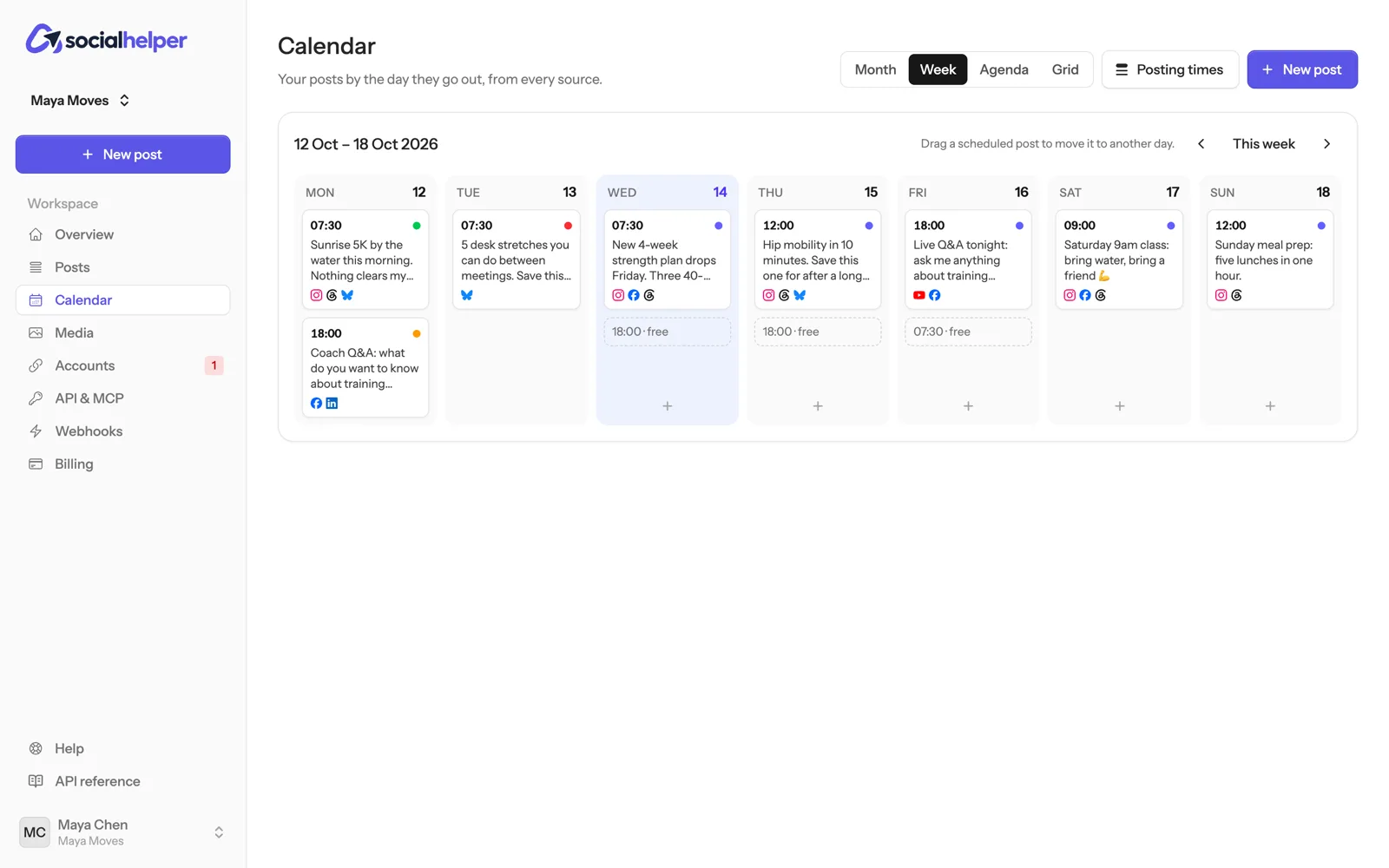
- Your free posting times show as free. Click one to start a post for that day.
- Click + at the bottom of a day to start a post for it.
- Use the arrows and This week to move between weeks.
Move a post to another day
In the week view, drag a scheduled post onto another day. It keeps its time of day. A message confirms the new date, for example “Moved to Sat 17 Oct, 12:00”.
You can’t move a post onto a day and time that has passed, or one that’s already going out. To change the time as well, open the post and click Edit.
Look further ahead
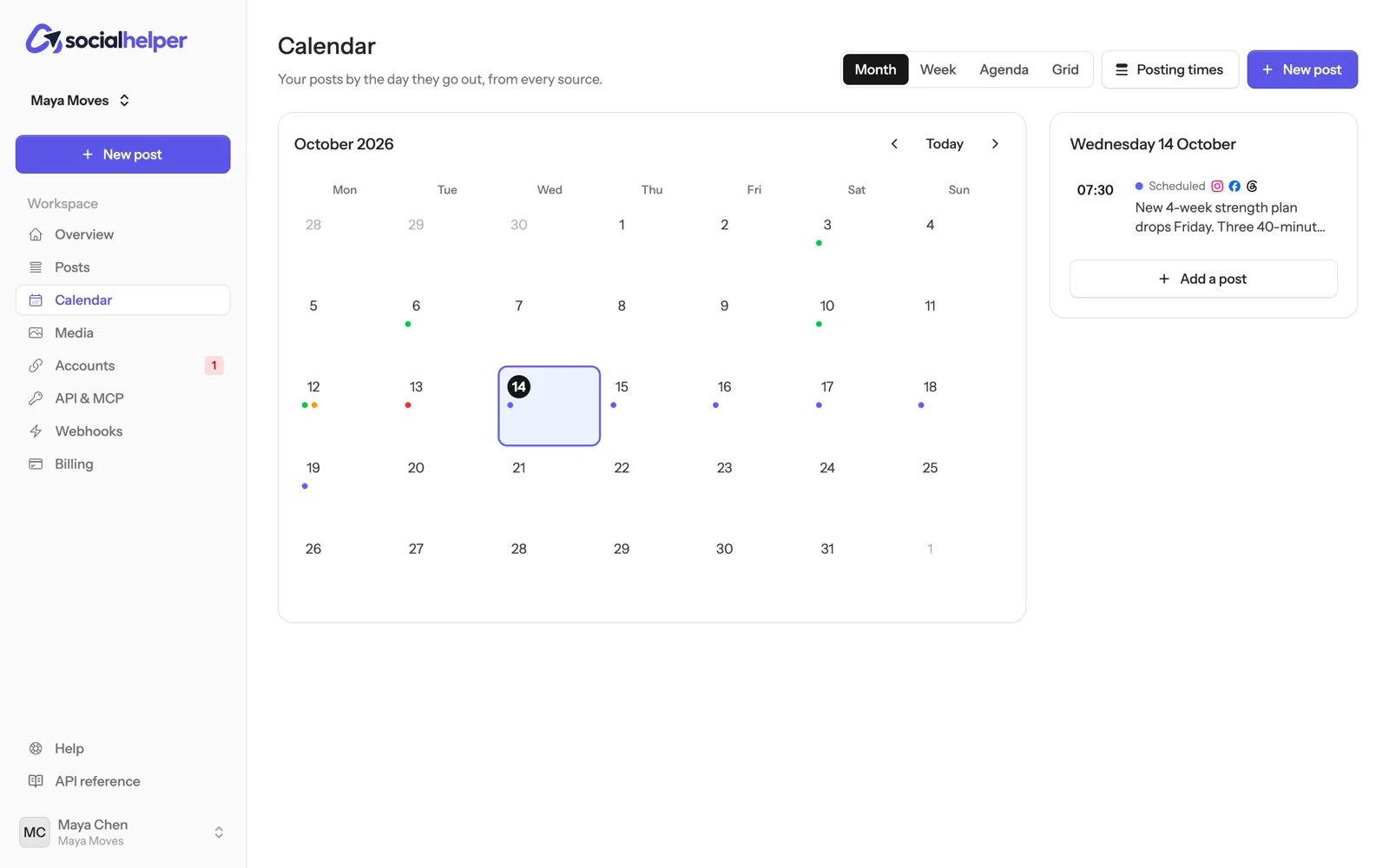
- Month shows dots on each day with posts. Click a day to list its posts on the right, or Add a post for that day.
- Agenda lists upcoming posts by day, with earlier ones below.
Preview your Instagram grid
- Click Grid and pick the account.
- Choose 4:5 or 1:1 to match how your profile shows posts.
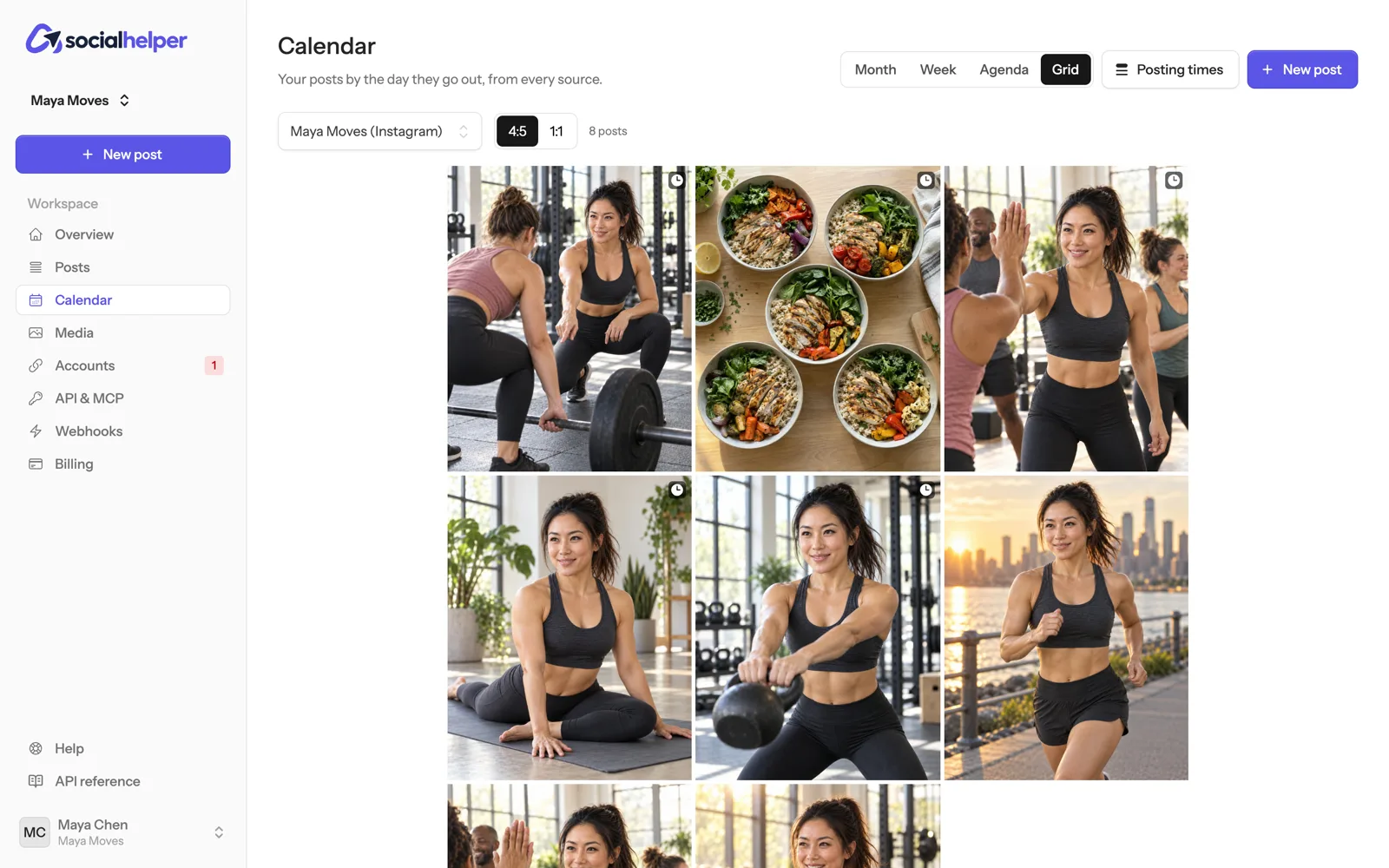
Posts are newest first, the way a profile shows them, so scheduled posts sit above the ones already published and you see the profile as it will look. Posts that failed are outlined in red. Click a post to open it.
Posting times
The Posting times button sets the weekly times the queue uses. See Schedule posts and use the queue.