

AI assistants and reports
Connect an AI assistant
Use SocialHelper from Claude, ChatGPT, Cursor or another MCP client.
Connect SocialHelper to an AI assistant and it can post to your accounts and pull reports when you ask in plain words. Assistants connect through SocialHelper’s MCP server at https://socialhelper.app/mcp. In Claude and ChatGPT you sign in; in other tools you give them an API key.
You need to be the team’s owner or an admin to connect an assistant or create an API key. The assistant can use every account connected to the team.
Claude
- In Claude, open Settings, then Connectors, and click Add custom connector.
- Paste
https://socialhelper.app/mcpas the server URL and choose OAuth if asked. - Sign in to SocialHelper when asked, pick the team and click Connect.
You don’t need an API key. The connection appears in SocialHelper under API & MCP, Connected apps.
ChatGPT
- In ChatGPT, open Plugins, click Add, then Add custom MCP server.
- Paste
https://socialhelper.app/mcpand choose OAuth. - Sign in to SocialHelper, pick the team and click Connect.
Claude Code, Cursor and other tools
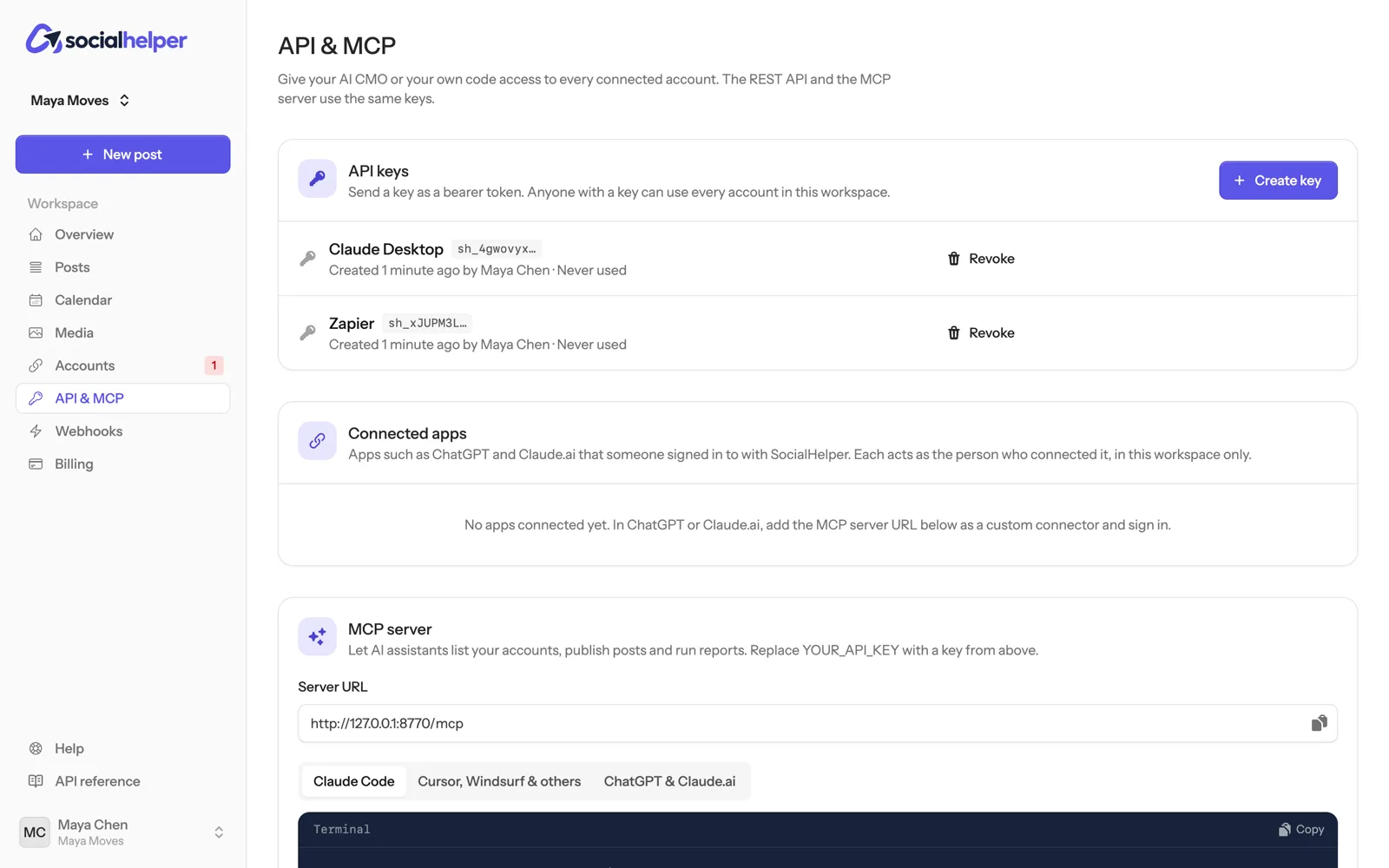
- In SocialHelper, click API & MCP in the sidebar, then Create key.
- Name it after where you’ll use it, for example “Claude Desktop”, and click Create API key.
- Copy the key straight away. It’s shown only once.
- Under MCP server, pick your tool’s tab and copy the setup, replacing
YOUR_API_KEYwith your key.
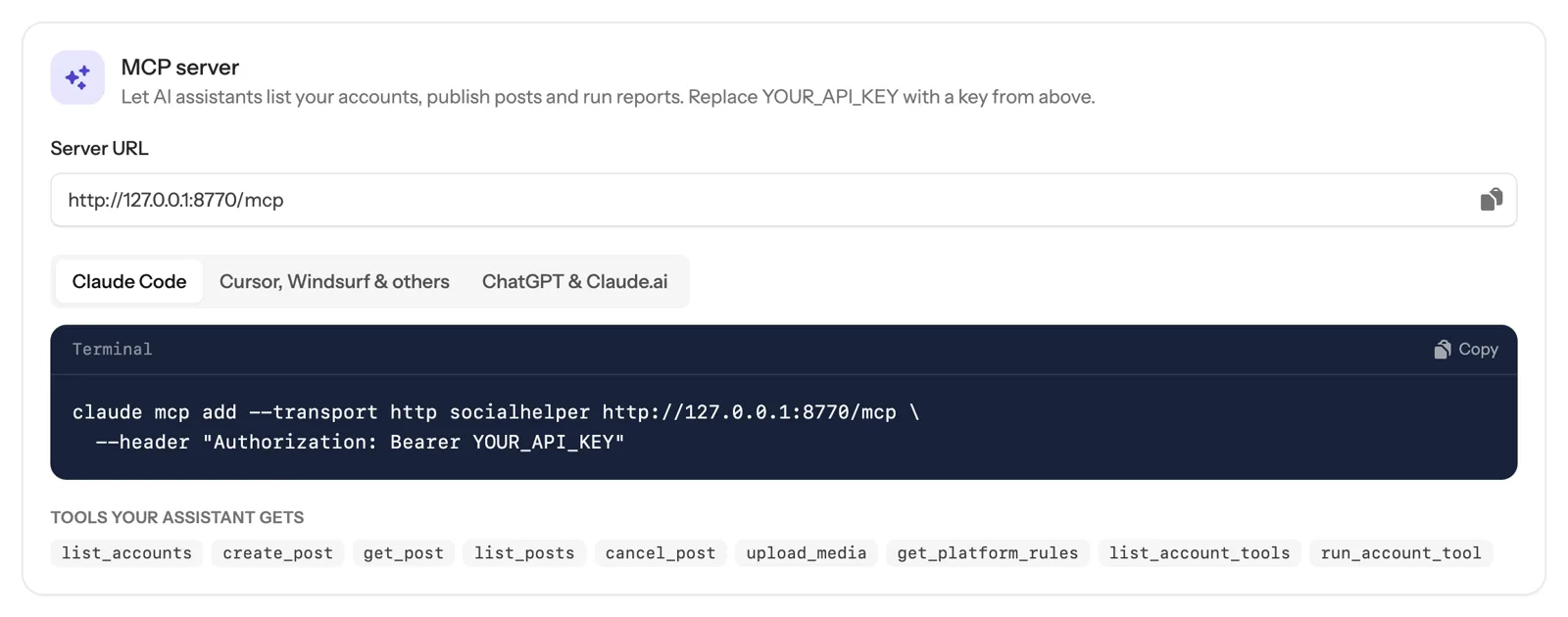
Step-by-step pages for each tool are under Integrations, including Claude Code, Cursor and Claude Desktop.
Check it works
Ask your assistant: “List my SocialHelper accounts.” It should name the accounts you’ve connected. Then see Let your assistant post for you.
Disconnect an assistant
- Signed in through Claude or ChatGPT: on the API & MCP page, click Disconnect next to it under Connected apps.
- Using an API key: click Revoke next to the key. Anything using it stops working immediately.
If something goes wrong
- No team to pick when signing in: your role on the team is member. Ask the owner or an admin to connect it, or to make you an admin.
- The assistant says it’s not authorized: the key was revoked or mistyped, or the connection was disconnected. Create a new key, or connect again.
- An account is missing from the list: it isn’t connected, or it needs to be reconnected. Check the Accounts page.