

Create posts
Write a post
Pick accounts, write once, change the text per platform, check it and send it.
The composer is where you write a post once and send it to as many accounts as you like, with different wording for any platform that needs it. Open it with New post in the sidebar.
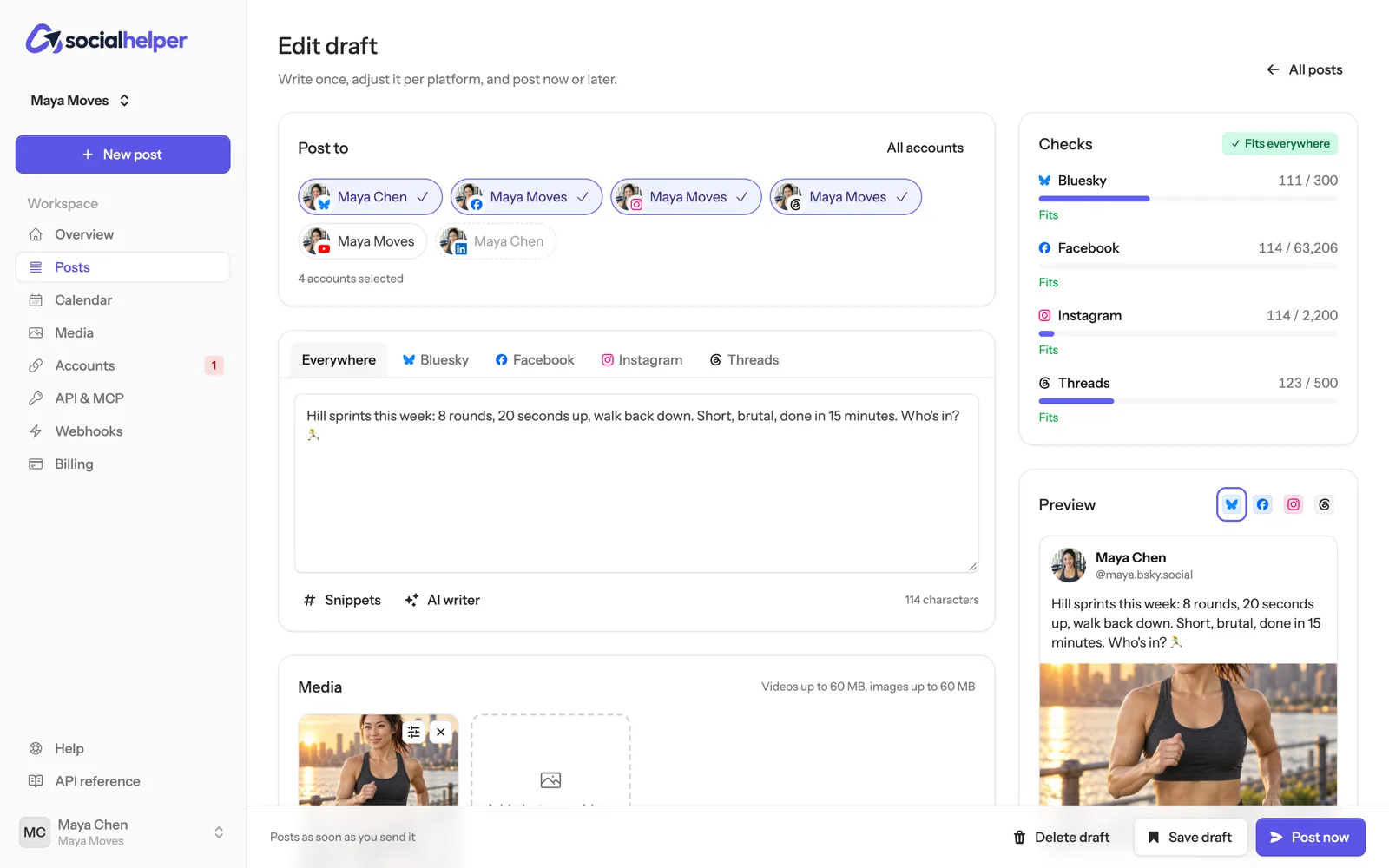
Pick the accounts
Under Post to, click each account you want to post to. All accounts selects every one and Clear removes them all. A post can go to up to 50 accounts.
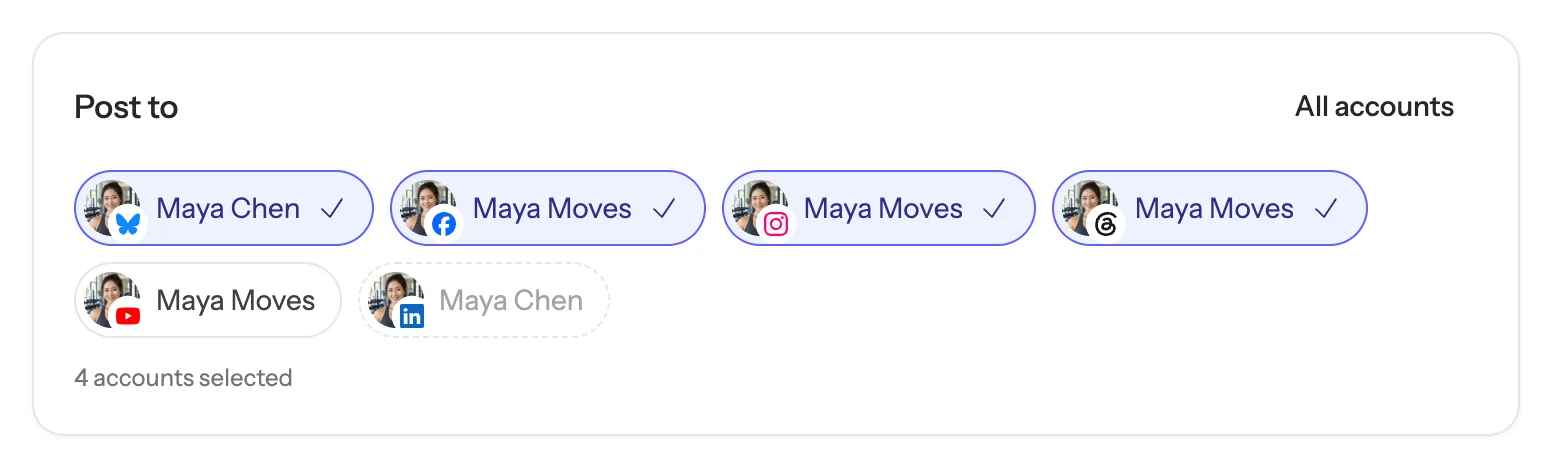
An account that needs to be reconnected says so here. Reconnect it first, or leave it out: see Keep accounts connected.
Write once
Type in the text box on the Everywhere tab. Every selected platform gets this text unless you change it for that platform.
Change the text for one platform
- Click the platform’s tab next to Everywhere, for example Instagram.
- Click Customize. The shared text is copied in for you to edit.
- Edit it. The tab is marked as having its own text.
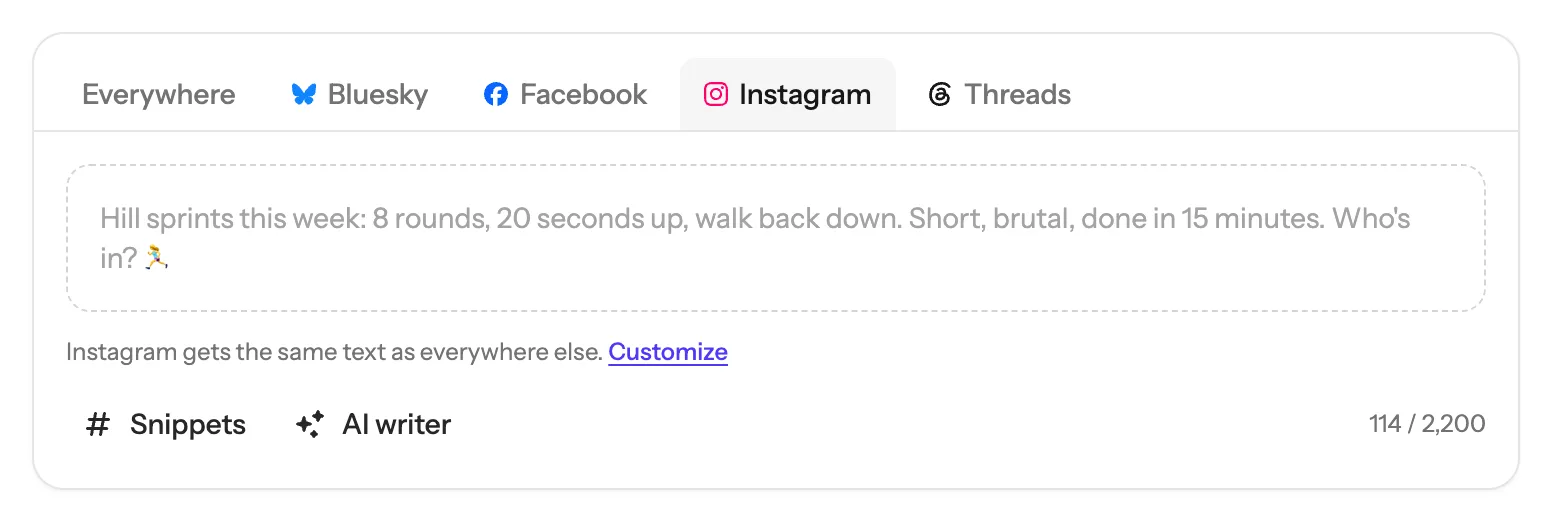
To go back to the shared text, open the tab and click Use the shared text. Edits you make on Everywhere afterwards no longer reach a platform that has its own text.
Check that it fits
The Checks panel counts the post the way each platform does, and checks the media against each platform’s rules. When everything is fine it says Fits everywhere.
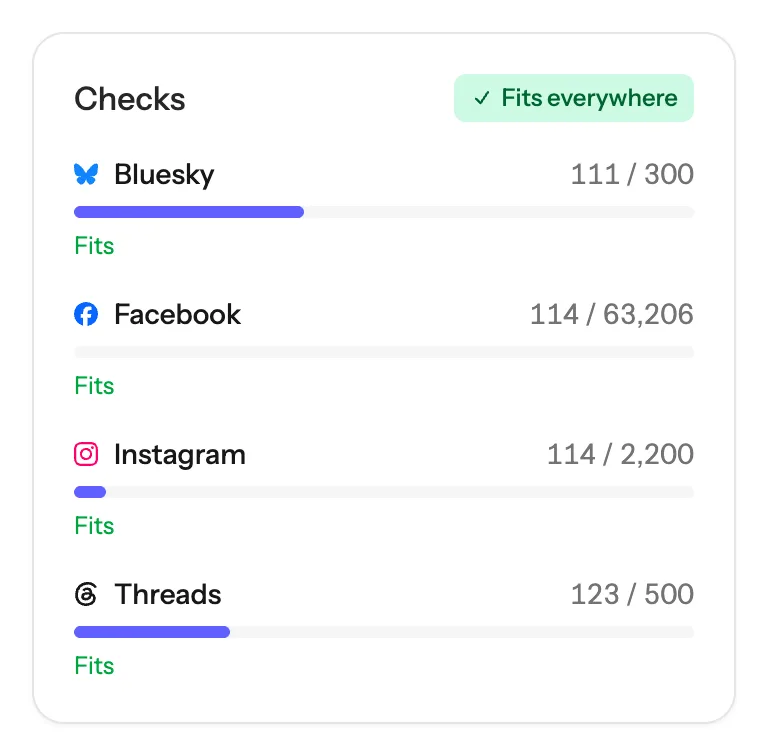
A red line tells you what to fix for that platform, such as text that’s too long or a platform that needs a photo or video. Click a platform in Checks to jump to its tab. You can’t send the post until every check passes.
Preview it
Below Checks, Preview shows roughly how the post will look. Switch between platforms with the icons at the top of the preview. It’s a guide: each platform has the final say on how posts look.
Send, schedule or save
Under When, choose one:
- Post now sends it as soon as you click the button at the bottom.
- Schedule sends it at a date and time you pick.
- Add to queue sends it at your next free posting time.
The bar at the bottom says what will happen, for example “Scheduled for Wed 14 Oct, 09:00”. Schedule posts and use the queue covers the last two. To finish later, click Save draft.
After you send it
Open the post from the Posts page to see how it went on each account. From there you can:
- Edit a scheduled post until about a minute before it goes out.
- Cancel a scheduled post. Accounts that haven’t started publishing won’t get it.
- Post again to open a copy in the composer with the same text, media, accounts and settings.
- Copy text to paste it somewhere else.
If something goes wrong
- “The post can’t be sent yet”: the list under it says what to fix, usually a check that doesn’t pass or no account selected.
- “That post can’t be changed any more”: it has started publishing, has finished, or goes out within a minute. Cancel it if you still can, or post again.