

Get started
Make your first post
Create your account, connect an account and send your first post.
By the end of this page you have a SocialHelper account, one connected social account, and a post that has gone out to it. It takes about five minutes.
1. Create your account
- Go to socialhelper.app/register.
- Click Sign up with Google, or fill in your name, email address and a password and click Create account.
- If you signed up with email, open the message we send you and click the link to verify your address.
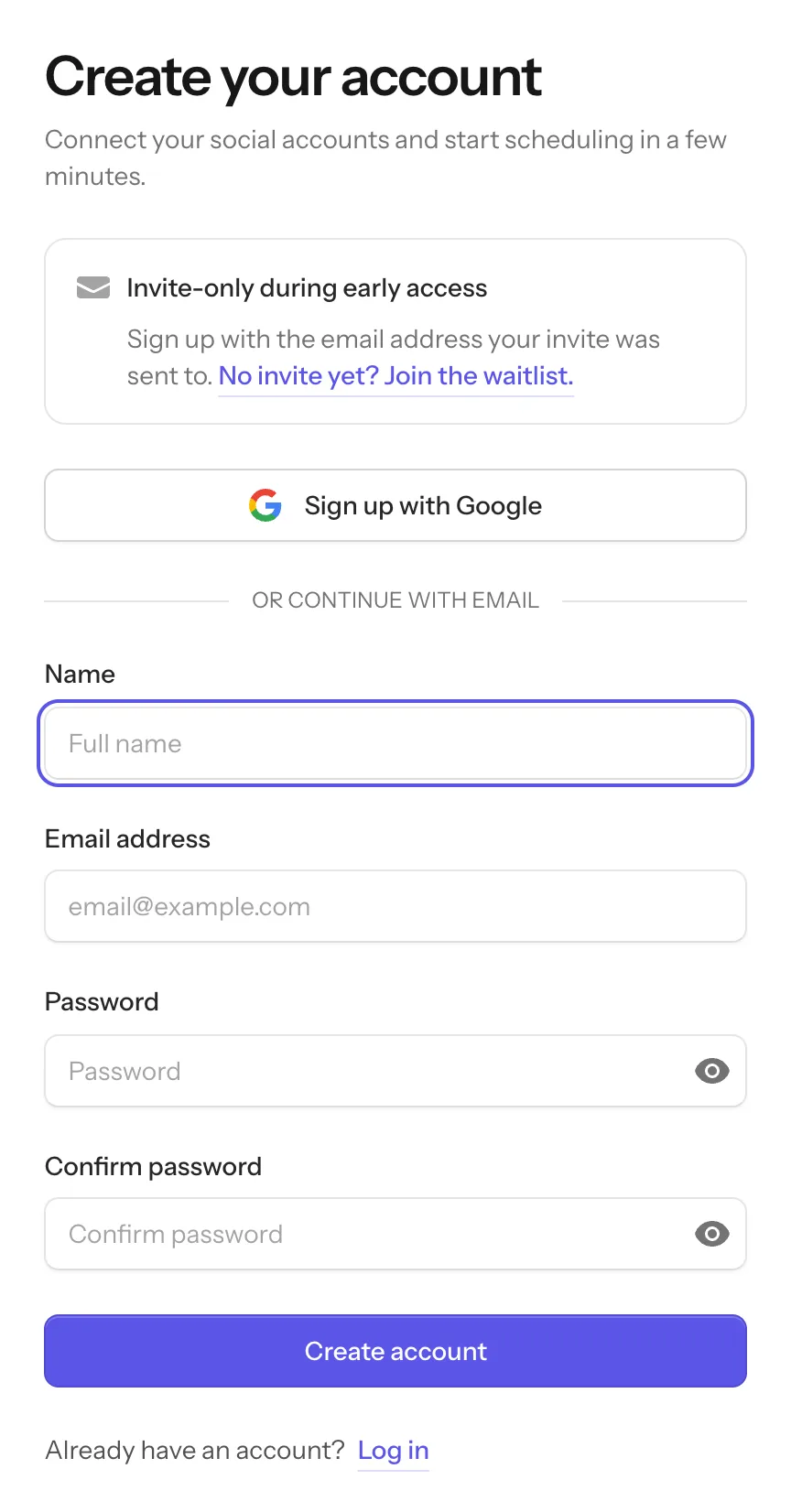
SocialHelper creates a team for you. Everything you connect and post belongs to that team, and you can invite other people to it later.
2. Connect an account
- In the sidebar, click Accounts, then Connect account.
- Pick the platform you want to post to and click Connect.
- Sign in to that platform and approve access. Some platforms ask for a token or an app password instead; the form tells you where to find it.
The account appears on the Accounts page with a green Connected label. Connect your accounts covers each platform.
3. Write your post
- Click New post in the sidebar. You can also start from What will you share today? on the Overview page.
- Under Post to, click the account you connected.
- Type your post in the text box. To add a photo or video, click Add photos or videos under Media.
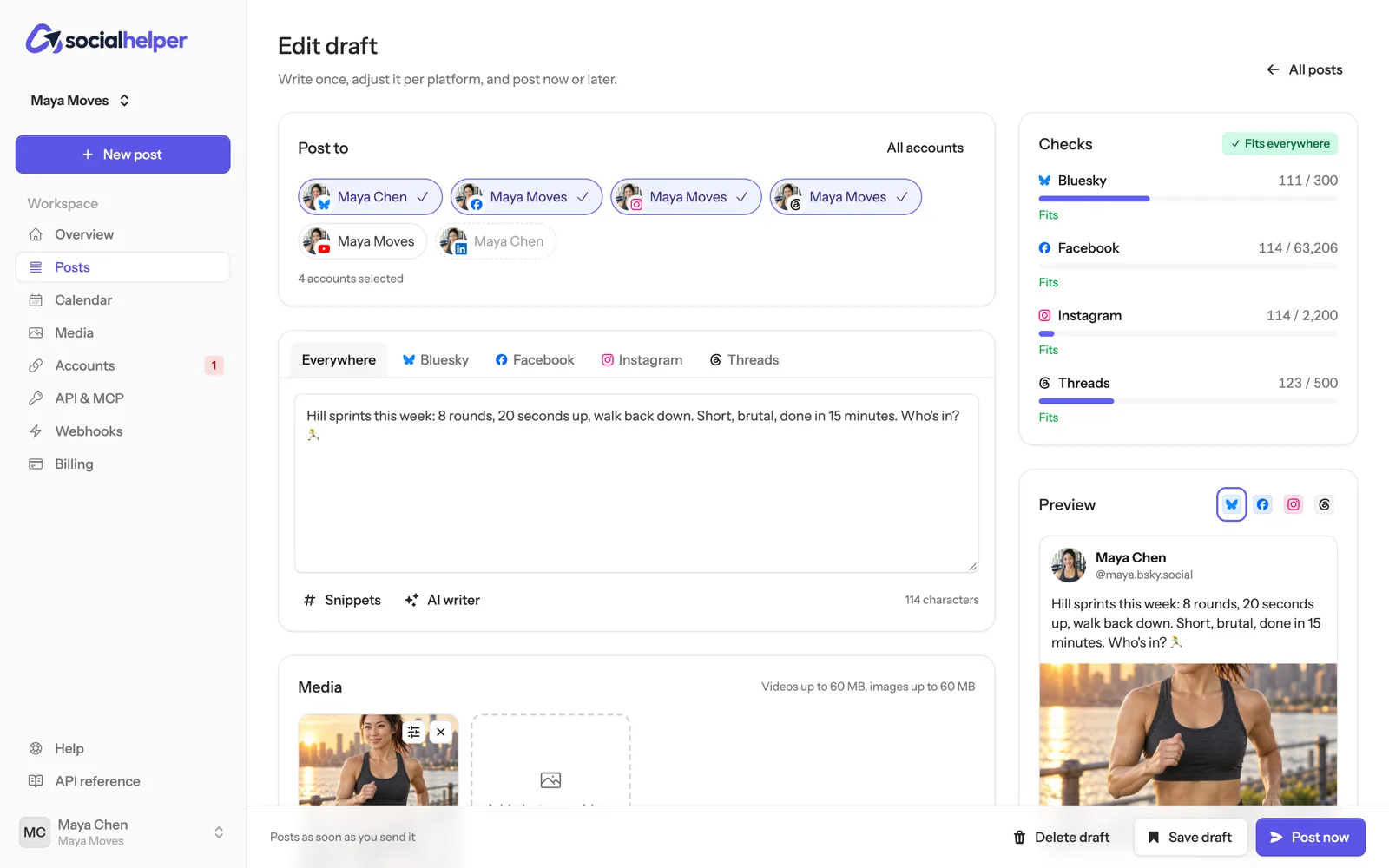
The Checks panel on the right shows whether the post fits the platform. Fix anything shown in red before you send it.
4. Send it
Under When, leave Post now selected and click Post now at the bottom of the page. To send it later instead, see Schedule posts and use the queue.
5. See how it went
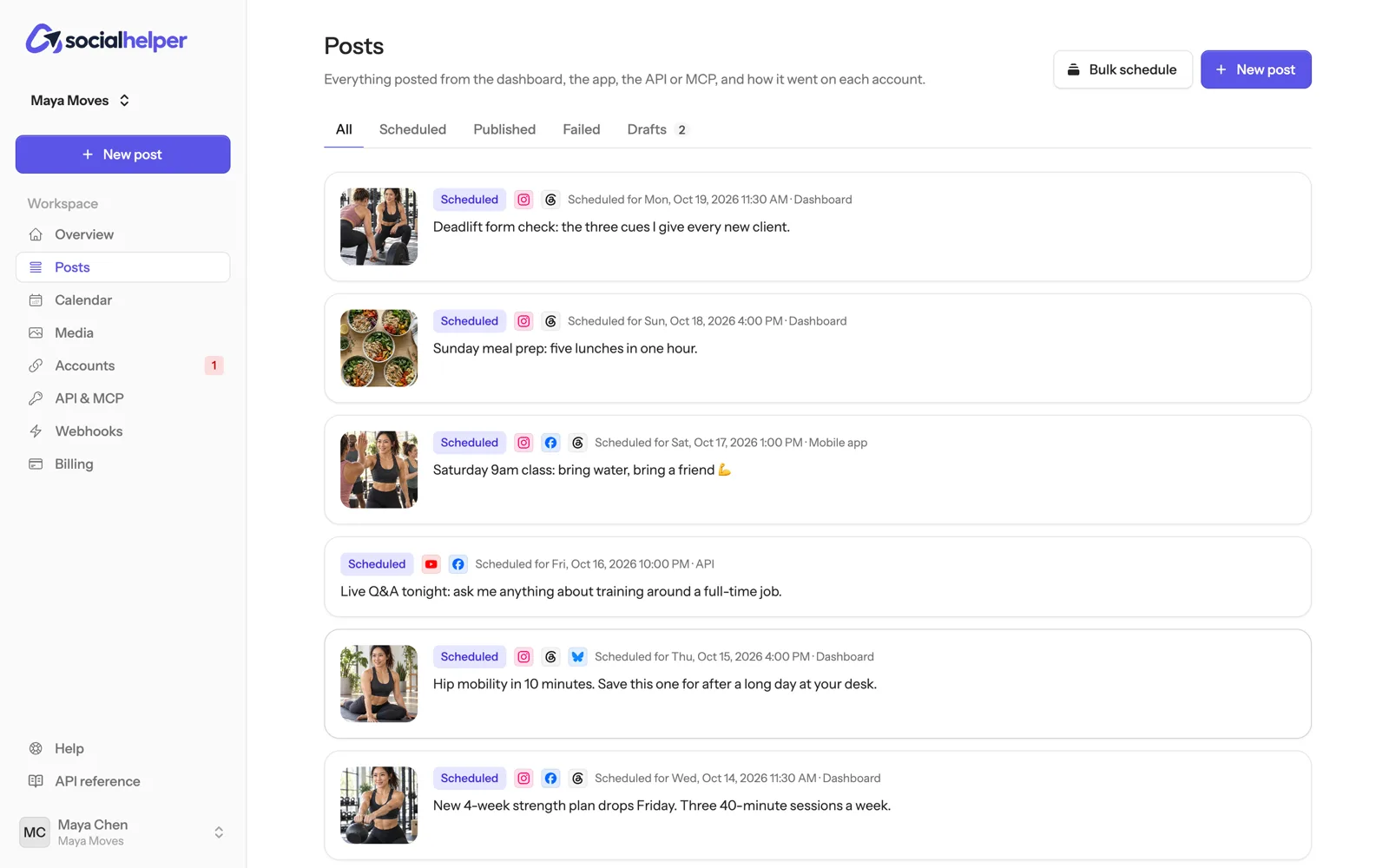
Click Posts in the sidebar. Your post is at the top of the list. Open it to see its status on each account and a View link to the live post.
If something goes wrong
- “SocialHelper is invite-only during early access” when you sign up: use the exact email address your invite was sent to, or join the waitlist.
- No verification email: check your spam folder, then click Resend verification email on the page you see after signing up.
- The post shows Failed: open it to read what the platform said. Check how a post went lists the common reasons and fixes.